Organizations
Multiple Admins are a paid feature available to Essential and Commercial subscribers. Details about what we charge for and how to manage your subscription are available on the billing page.
For an overview of current pricing and terms including suggested use cases, please see the Pricing page on our website.
ZeroTier Central is available in two versions. Please follow the appropriate instructions based on which version you are using:
- New Central - The modern interface with enhanced features and improved user experience (central.zerotier.com)
- Legacy Central - The original interface (my.zerotier.com)
Not sure which version you're using? See How to Check Your Central Version.
- New Central
- Legacy Central
New Central Instructions
Understanding Organizations
The left sidebar of New Central allows you to navigate the three levels of the control hierarchy: Organizations, Network Groups, and Networks.
Each Organization has its own pricing and billing, and contains one or more network groups. Network groups can contain unlimited networks and devices (up to your plan limits).
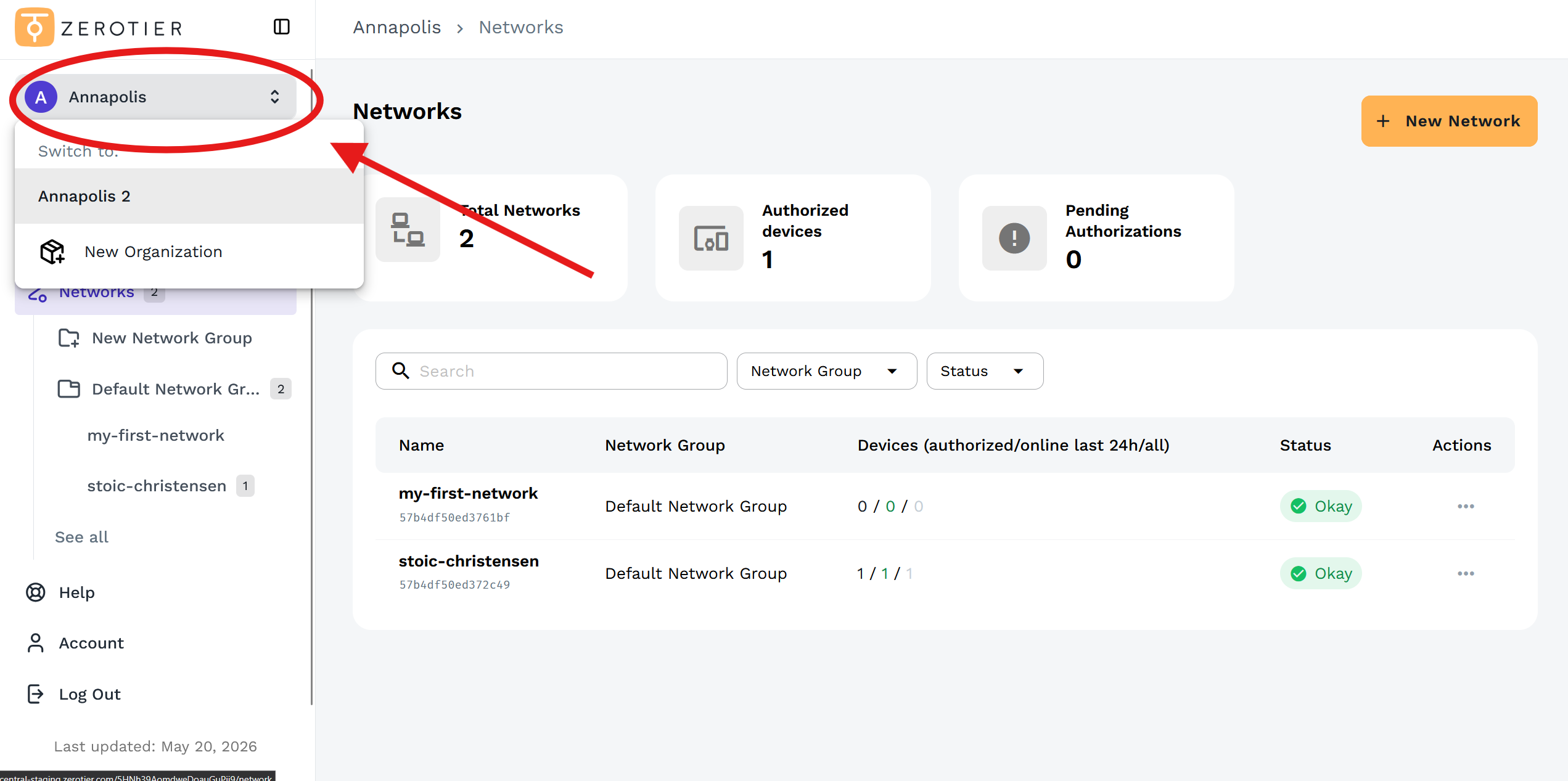
A New Central account can be an owner or user of multiple organizations. Click the organization name in the top-left to access the dropdown menu showing all Organizations where you are active as either an Owner or Administrator.
For more information about Network Groups and Networks, see Network Groups and Networks.
Creating a New Organization
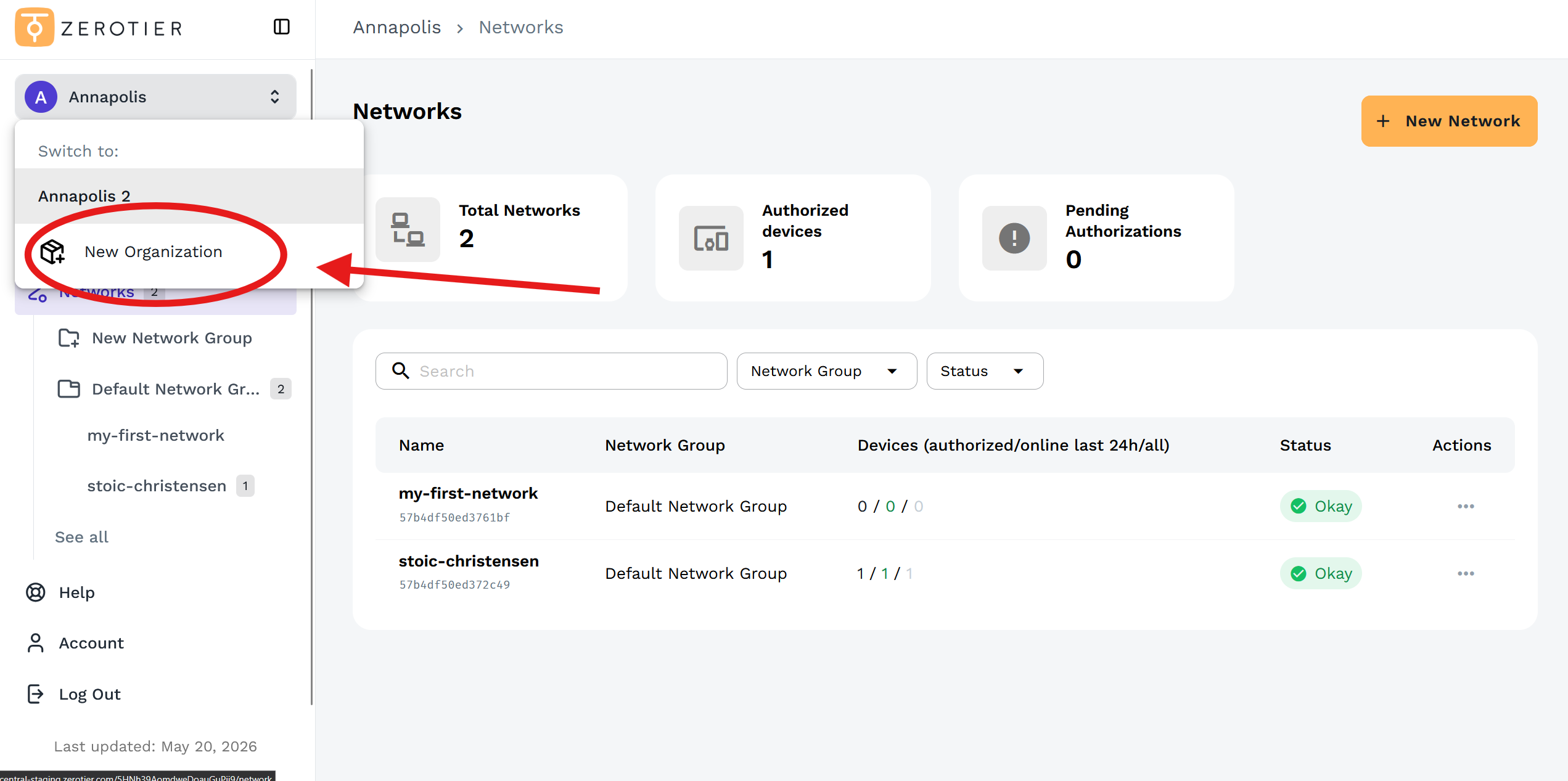
A New Central user can own more than one Organization. To create an additional Organization:
- Click the organization name in the top-left and select New Organization
- Name and choose the plan for this Organization as you did during setup for New Central
Additional Organizations may choose from any plan.
Adding a User to Your Organization
To add a user to your Organization:
- Click on your Organization name in the left sidebar
- Select the Access Controls tab
- Click the Add User(s) button
- Enter the email of the user you'd like to invite (must be an existing New Central user)
- The Administrator role will be automatically assigned
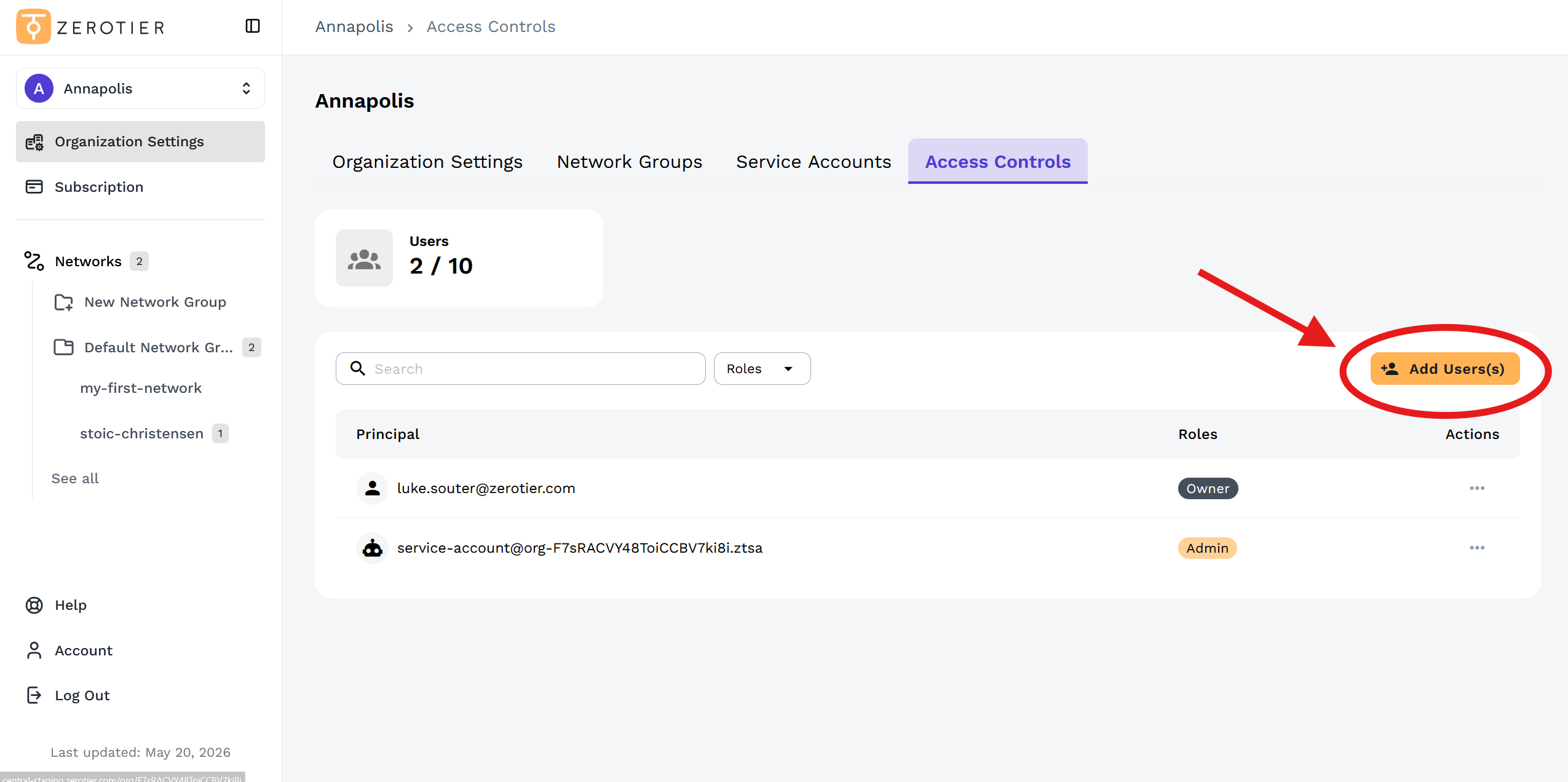
After being invited, users can access the Organization through the organization dropdown in the top-left.
Administrator Permissions:
- Administrators have equal control over network groups and networks as the owner
- Administrators can add and remove other Administrators
- Non-Owner users have no visibility or control over an Organization's plan or billing
All administrator features are also accessible to the owner.
Removing a User from Your Organization
- Click on your Organization name in the left sidebar
- Select the Access Controls tab
- Find the user you'd like to remove under "Principal"
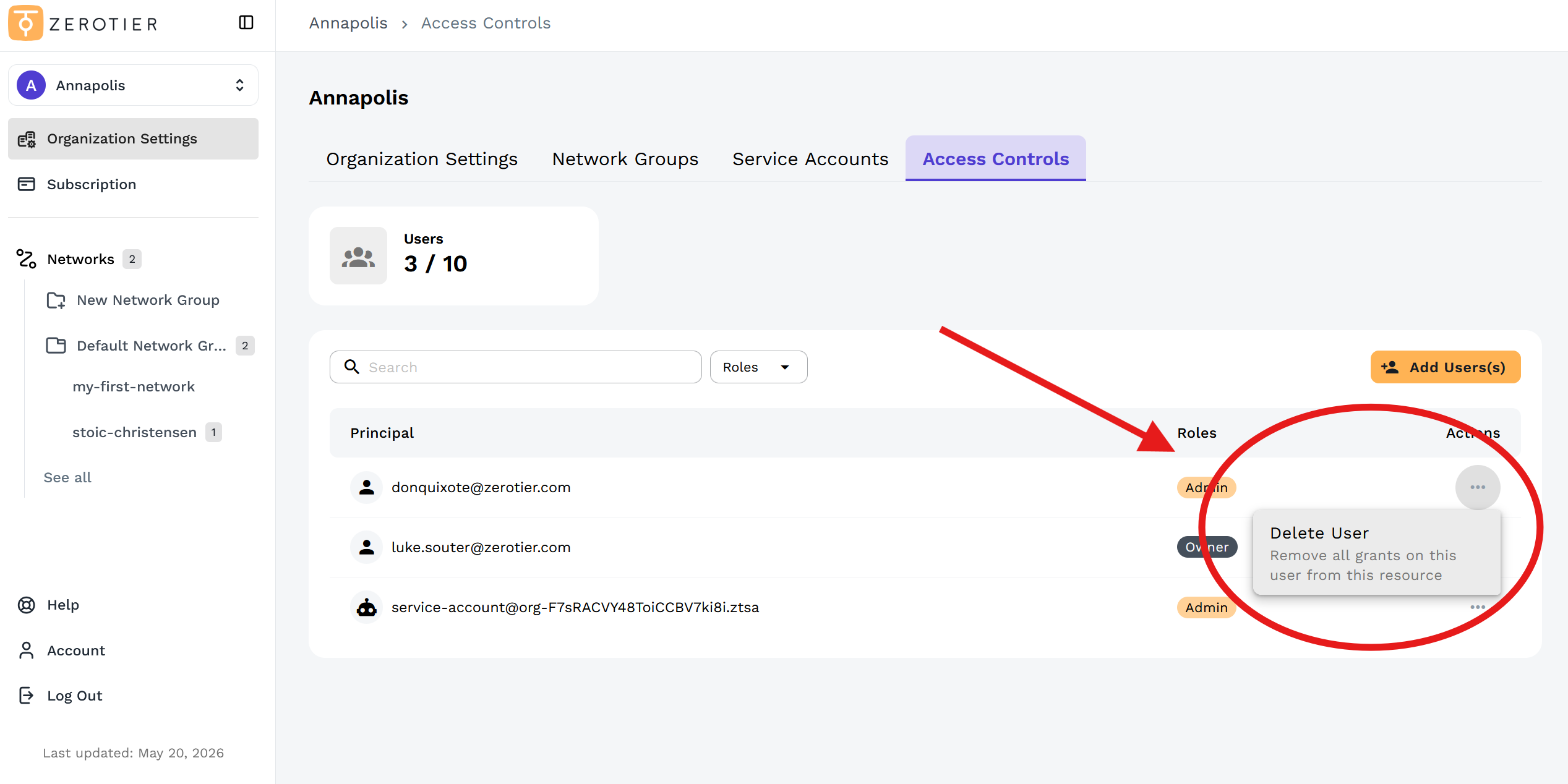
- Click the three-dot menu under "Actions"
- Select Delete User to remove the user from your Organization
Managing Service Accounts
Service accounts provide API access for automation and integrations without being tied to individual user accounts.
- Navigate to the Organization window
- Select the Service Accounts tab
- Click Add Service Account to create a new service account
- Generate API tokens for the service account with custom expiry dates
Service accounts appear in the Access Controls tab alongside regular users and have administrator privileges to the organization.
For detailed instructions on creating and managing service accounts, see the API Tokens guide.
Network Administrator Permissions:
- Administrators have equal control over network groups and networks as the Owner
- Administrators can add and remove other Administrators
- Non-Owner users have no visibility or control over an Organization's plan or billing
Change the Organization Owner
To change the Organization owner, please contact ZeroTier Support.
Legacy Central Instructions
You can invite your teammates to help manage your ZeroTier network deployments on the Legacy Central Account Page.
Adding a User to Your Organization
Add them to your Organization by going to my.zerotier.com/account
Create an invite by typing in an email address
We will email them the link. You can also paste it into your company chat.
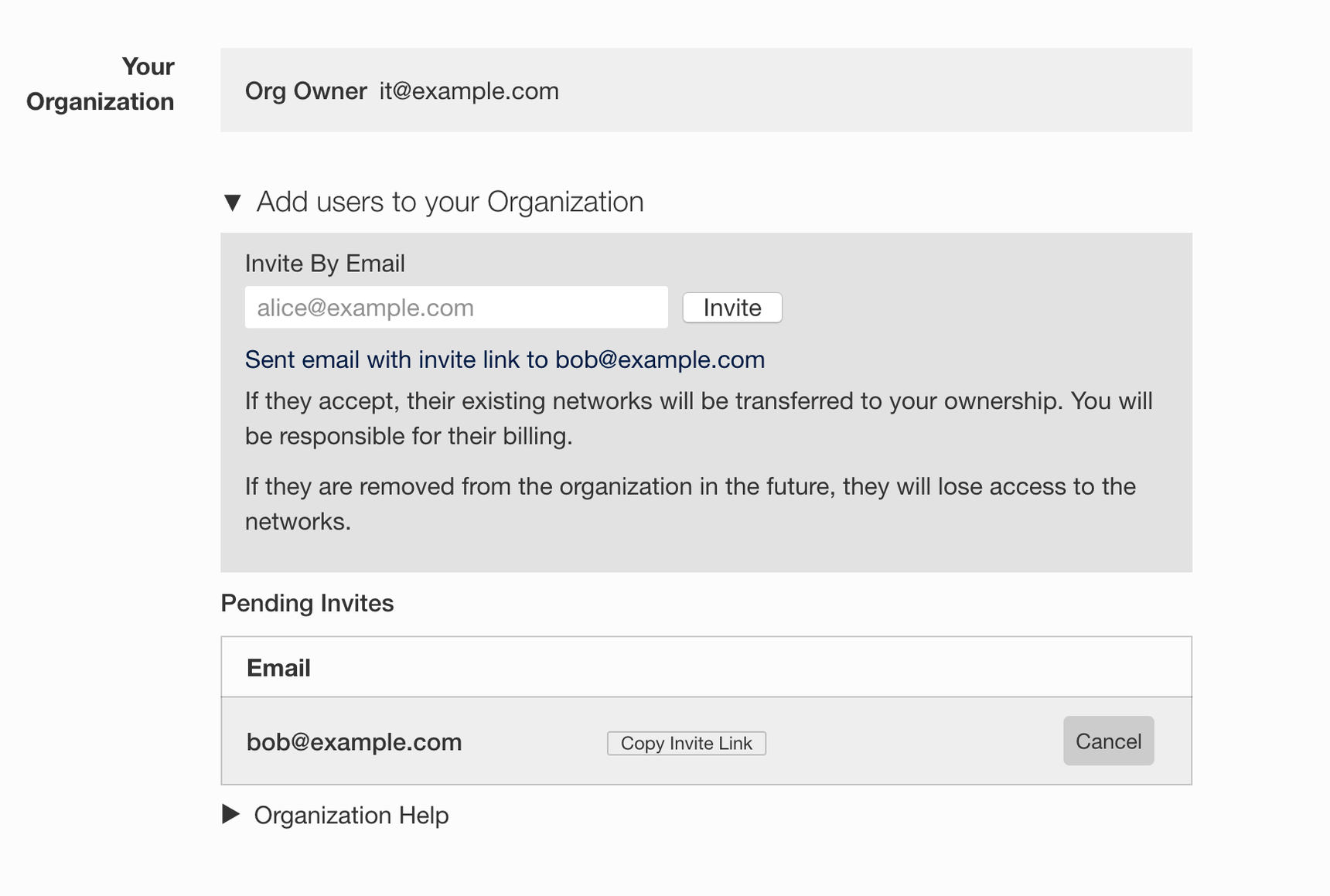
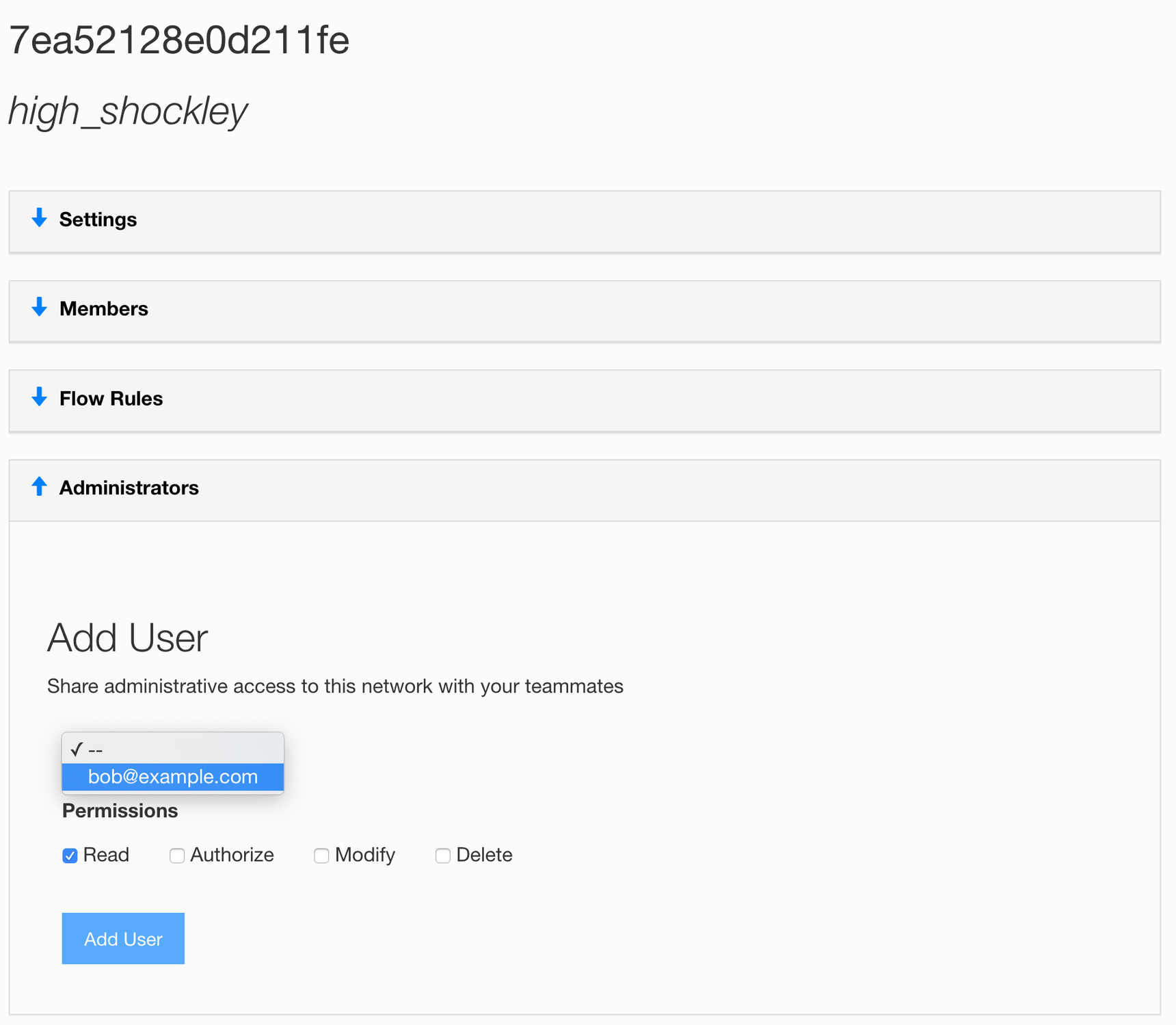
Once they accept the invite, they can be added as Admins to individual networks.
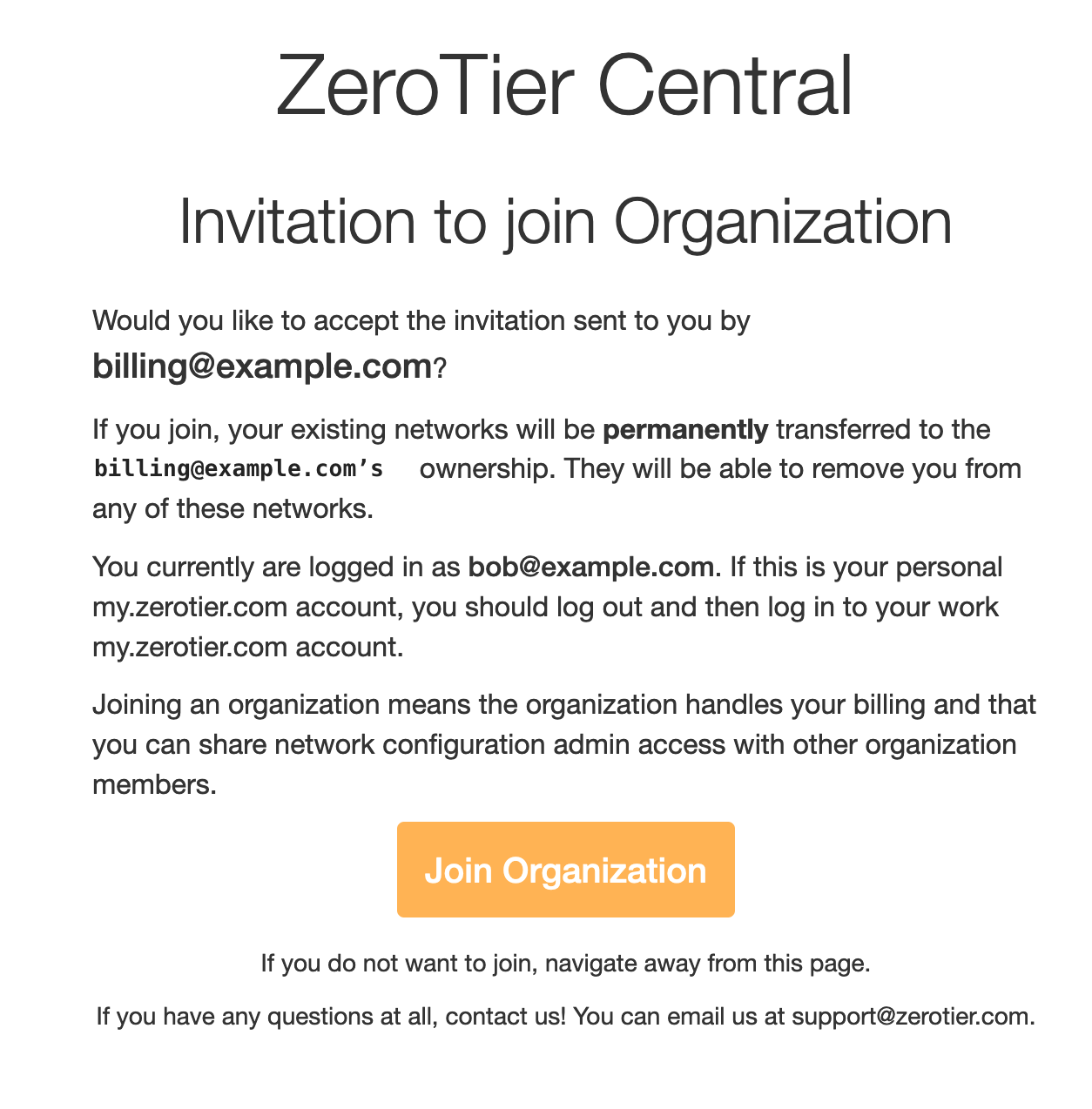
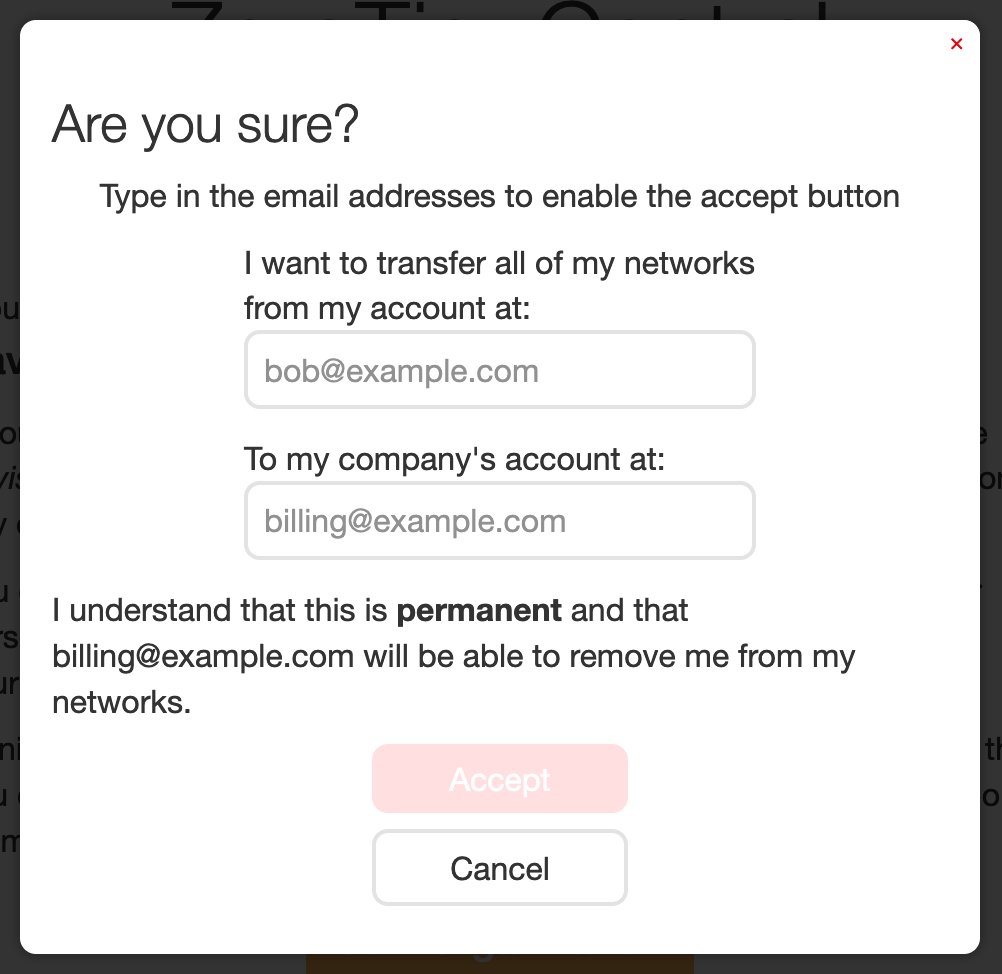
The invited User will see:
Removing Admins from the Organization
You can click the "remove" button next to their name in the list of admins. They will lose Admin access to the organizations networks.
Adding Network Administrators
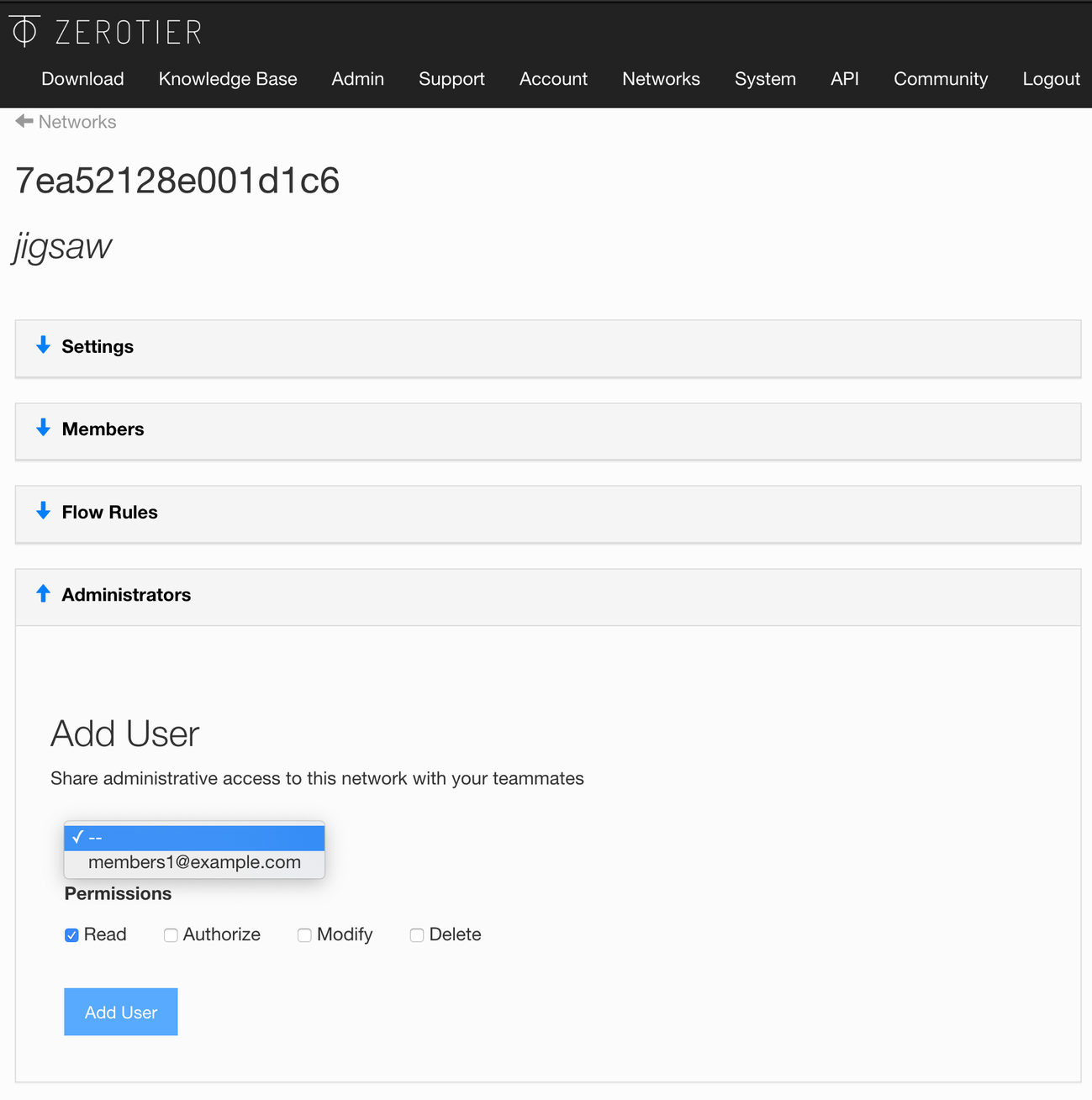
Toward the bottom of a Networks page there is a section titled "Administrators".
A user must be a member of your Organization to become a Network Administrator.
Network Administrator Permissions:
You can allow another my.zerotier.com user permission to
- Read - They can look at the network but not change anything
- Authorize - Allow them to Authorize new members, but not make other changes
- Modify - Allow them to change any settings on this Network
- Delete - Allow them to delete the network
Change the Organization Owner
To change the Organization owner, please contact ZeroTier Support.
Next Steps
- Learn how to manage Network Groups and Networks
- Explore New Central features and capabilities