Rules Engine
What is the Rules Engine?
The ZeroTier Rules Engine is a distributed traffic control system that runs inside the ZeroTier agent on each device. It allows you to define network access policies through ZeroTier Central that are then enforced locally and bidirectionally on every node.
Why Does It Matter?
Traditional firewalls and endpoint security tools only see encrypted ZeroTier traffic - they can't inspect or control what happens inside your virtual network. The rules engine operates at the ZeroTier virtual network layer, giving you granular control over traffic between specific devices or groups.
The rules engine is distributed and cryptographically secured. Policies are configured centrally through ZeroTier Central, then signed and pushed to each node where they're enforced locally. To bypass these rules, an attacker would need to compromise both sides of a connection.
The rules engine works alongside traditional security tools like firewalls and endpoint protection. They can and should be used together for full control over your network environment.
Traffic on ZeroTier networks can be observed and controlled with a system of globally applied network rules. These are enforced in a distributed fashion by both the senders and the receivers of packets. To escape the rules engine, a malicious attacker would need to fully compromise both sides of any conversation.
- New Central
- Legacy Central
Flow Rules in New Central
Flow rules are available based on your subscription tier:
| Tier | Templated Rules | Custom Rules |
|---|---|---|
| Free | ❌ Not available | ❌ Not available |
| Essential | ✅ Available | ❌ Not available |
| Scale | ✅ Available | ✅ Available |
| Enterprise | ✅ Available | ✅ Available |
Switching Between Templated and Custom Rules
Custom Flow Rules are available on the Scale and Enterprise plans. Essential tier users have access to Templated Flow Rules only.
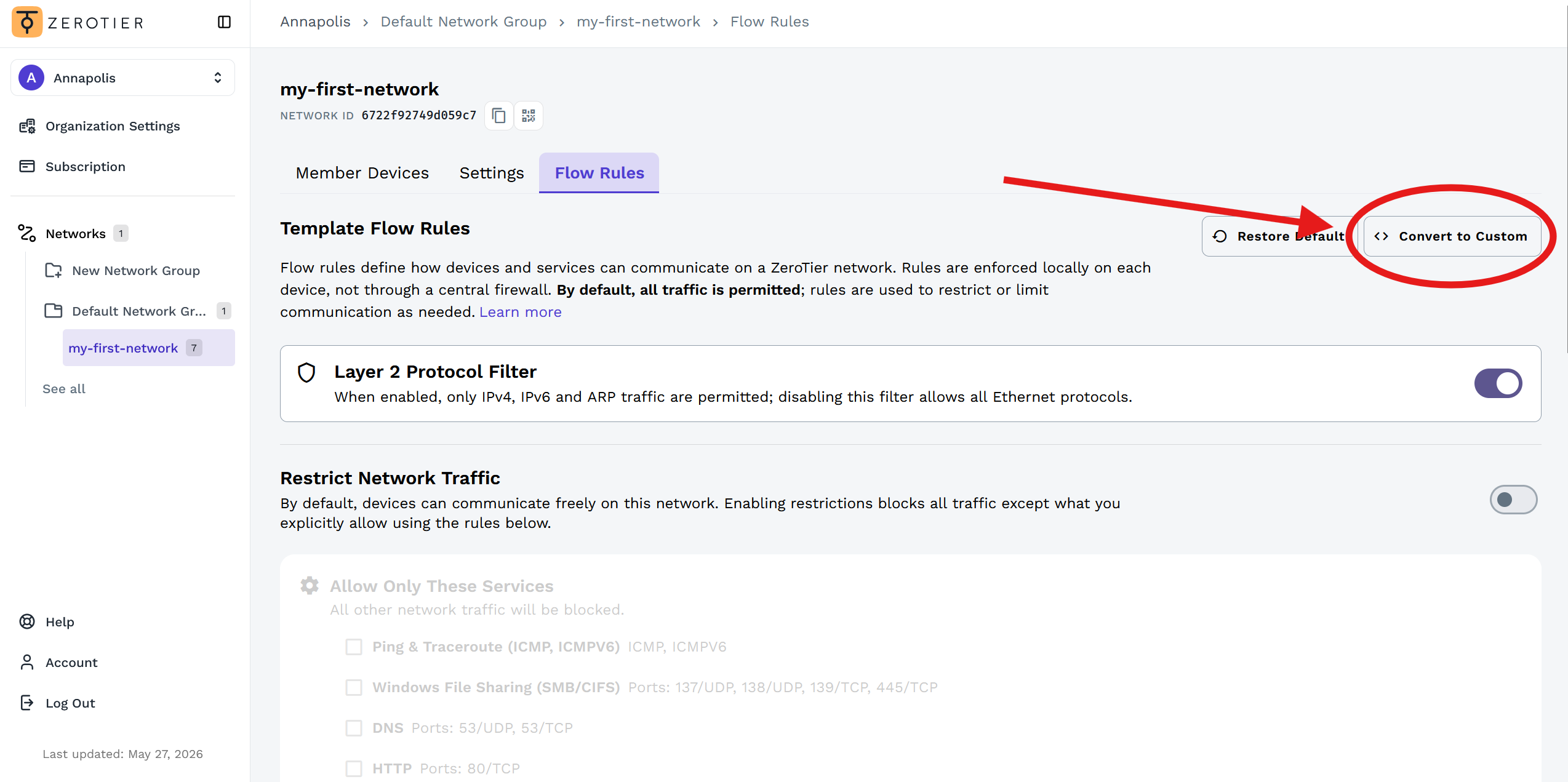
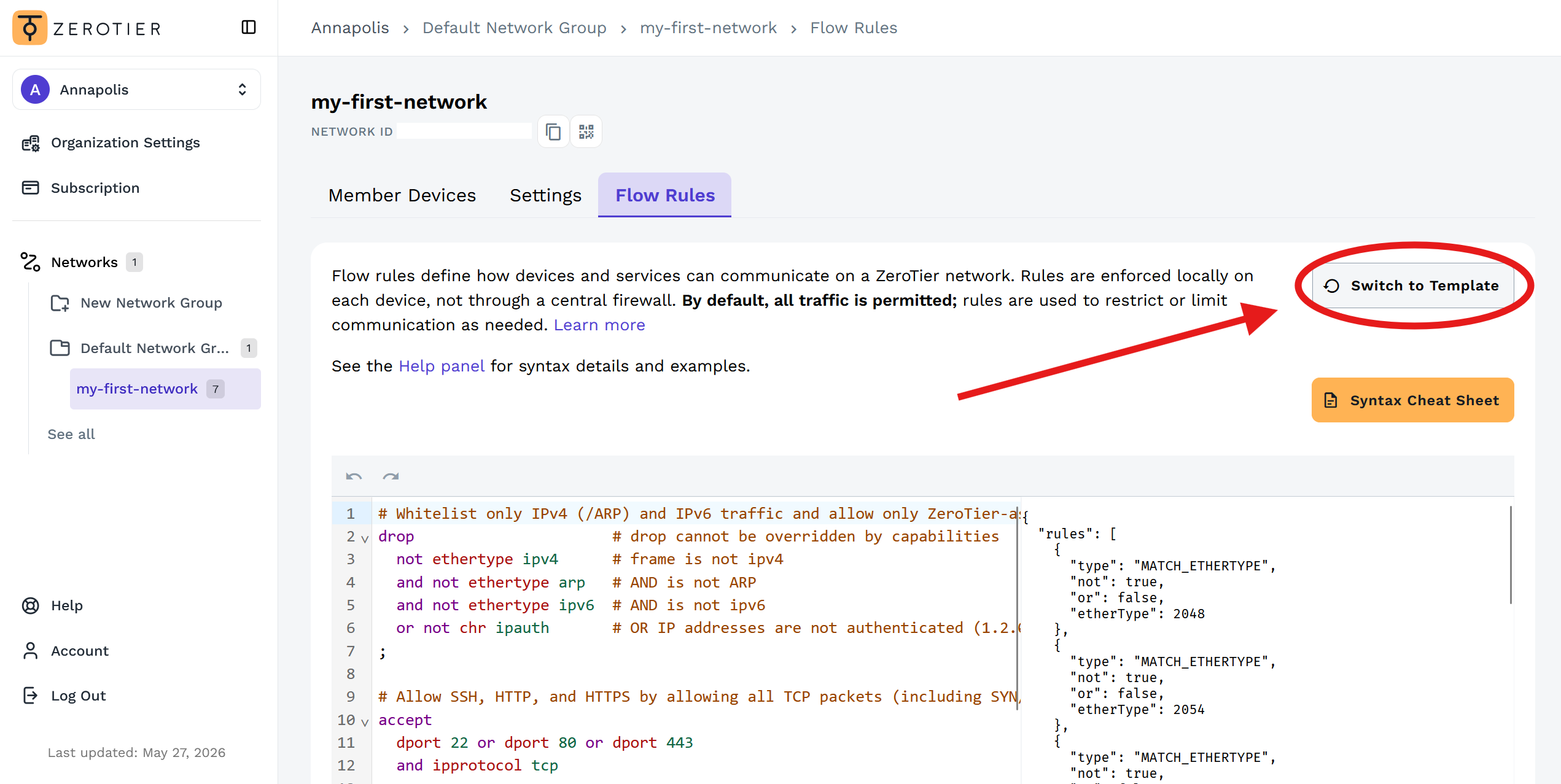
Scale and Enterprise users can switch between Templated and Custom Flow Rules:
- Navigate to your network's Flow Rules tab
- Click Convert to Custom to switch to the advanced rules engine
- Click Switch to Template to return to the templated interface
Choose Your Flow Rules Mode
- Templated Flow Rules
- Custom Flow Rules
Templated Flow Rules
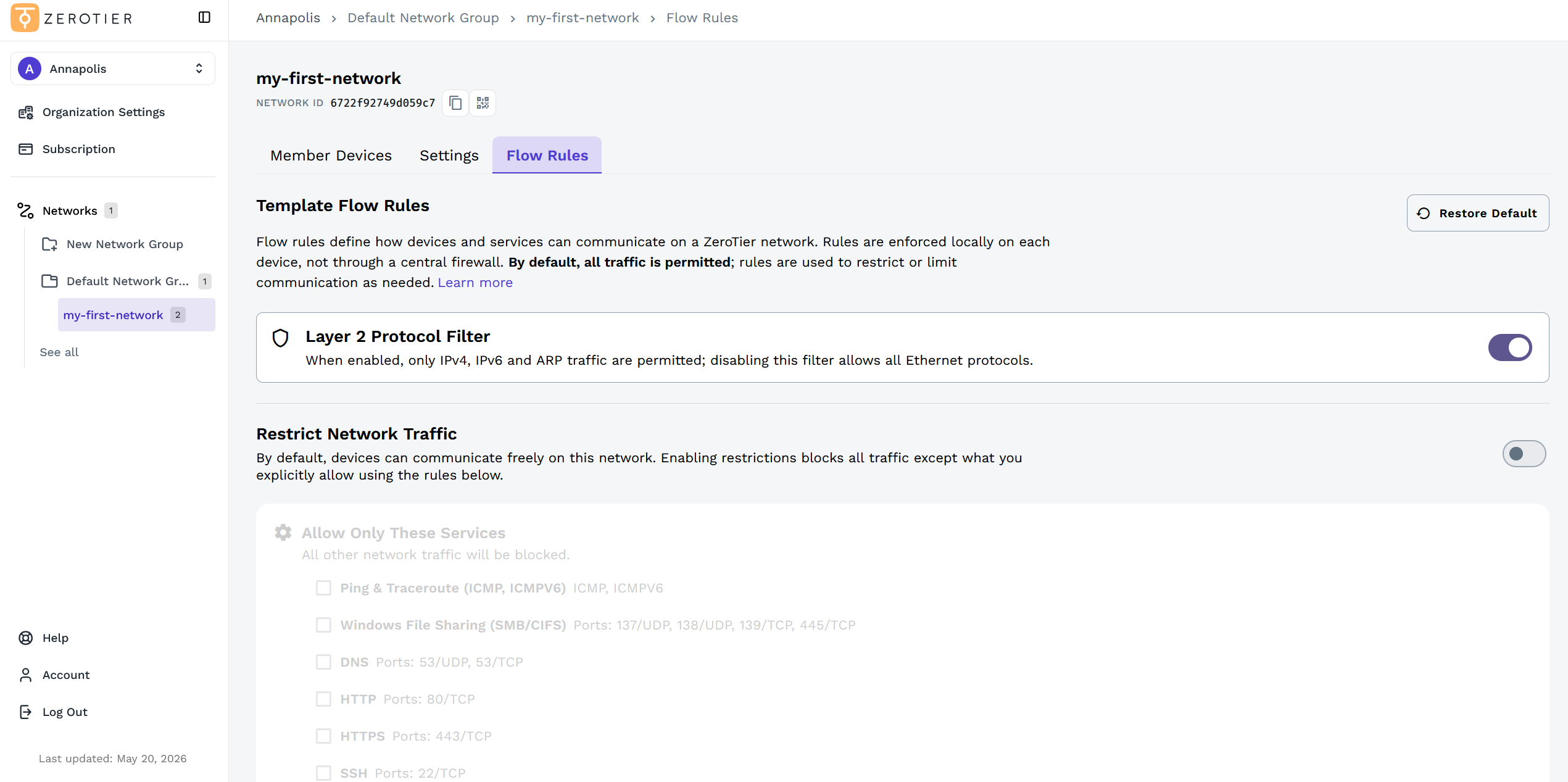
Templated Flow Rules provide a streamlined, user-friendly interface for common traffic filtering scenarios. Available on New Central for Essential tier and higher.
Default Configuration
By default, flow rules are disabled and all traffic is allowed across the network. The interface shows the default Layer 2 Protocol Filter which allows only IPv4, IPv6, and ARP traffic, blocking all other Ethernet frame types. This filter operates at the data link layer and provides basic protocol whitelisting for your network.
Blocking All Traffic
When flow rules are enabled with no traffic types selected, all traffic across the network will be blocked:
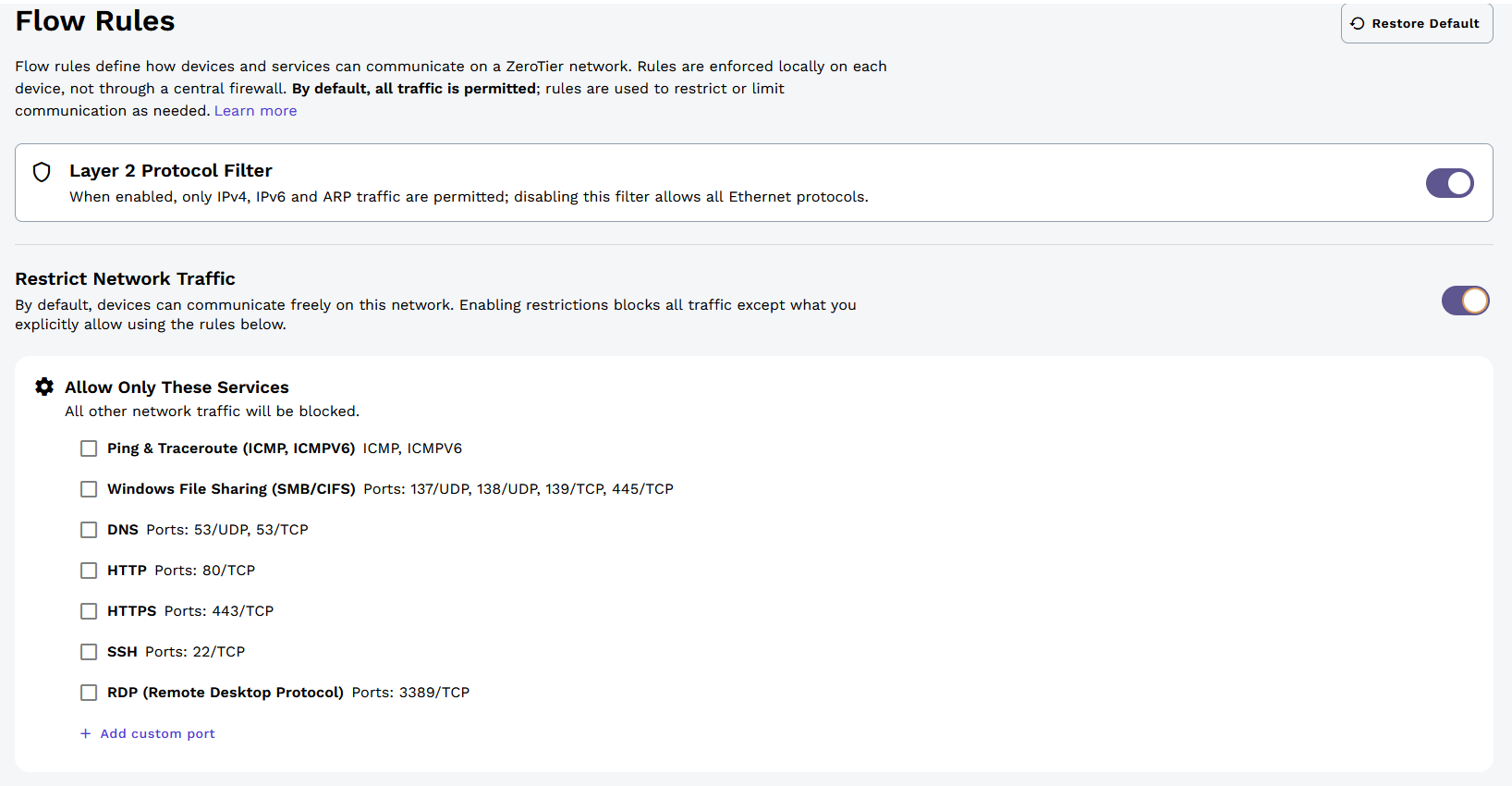
This configuration blocks all communication between nodes on the network.
Allowing Specific Traffic
You can enable flow rules and select specific traffic types to allow. In this example, only Ping & Traceroute (ICMP/ICMPv6), HTTP, and HTTPS traffic is allowed:
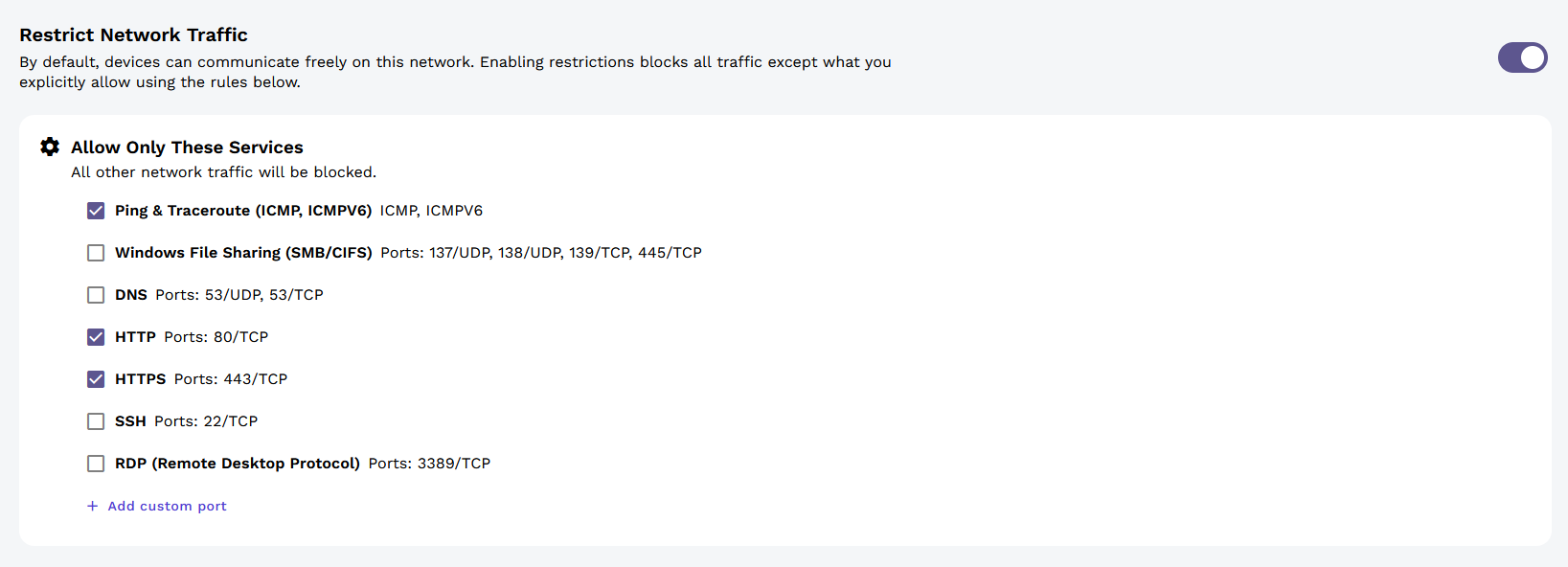
With this configuration, all nodes across the network can only communicate using these protocols. All other traffic will be dropped.
Custom Ports and Protocols
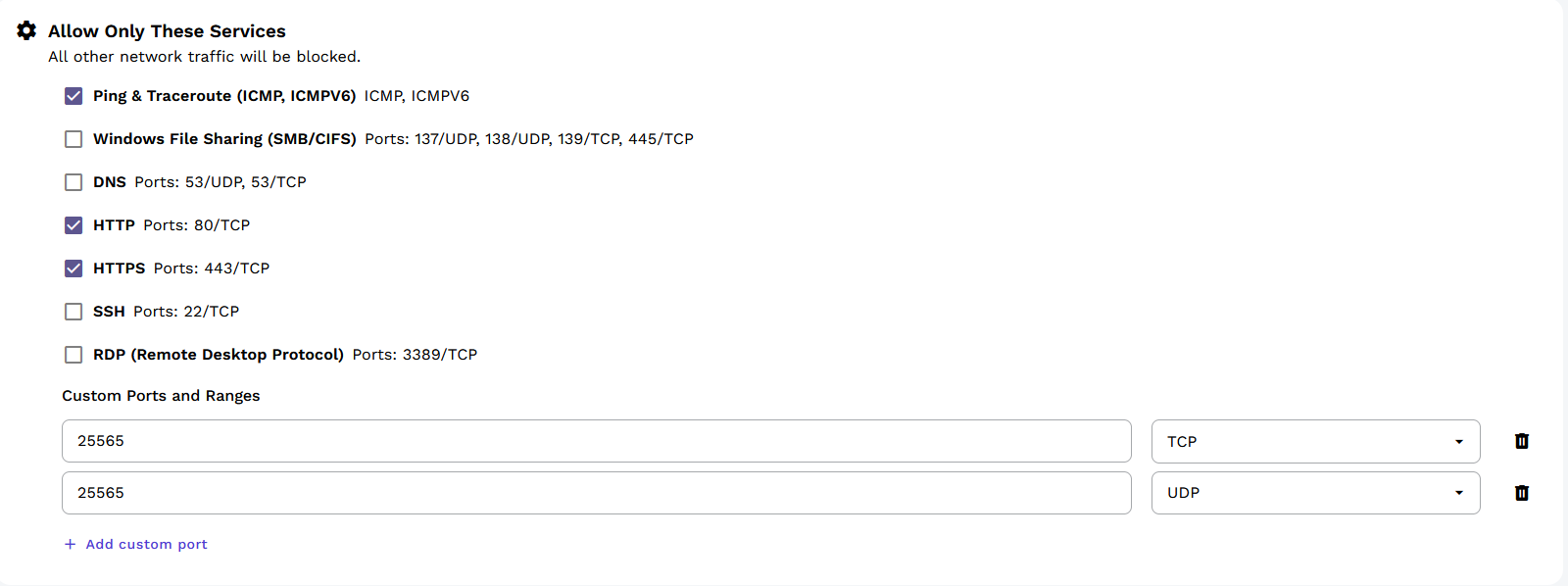
You can define custom port/protocol combinations for specific use cases. In this example, both UDP/25565 and TCP/25565 are opened (commonly used for game servers):
Excluded Devices
The Excluded Devices section allows you to exempt specific devices from flow rule restrictions. All traffic to and from excluded devices will be allowed, regardless of the rules configured above.
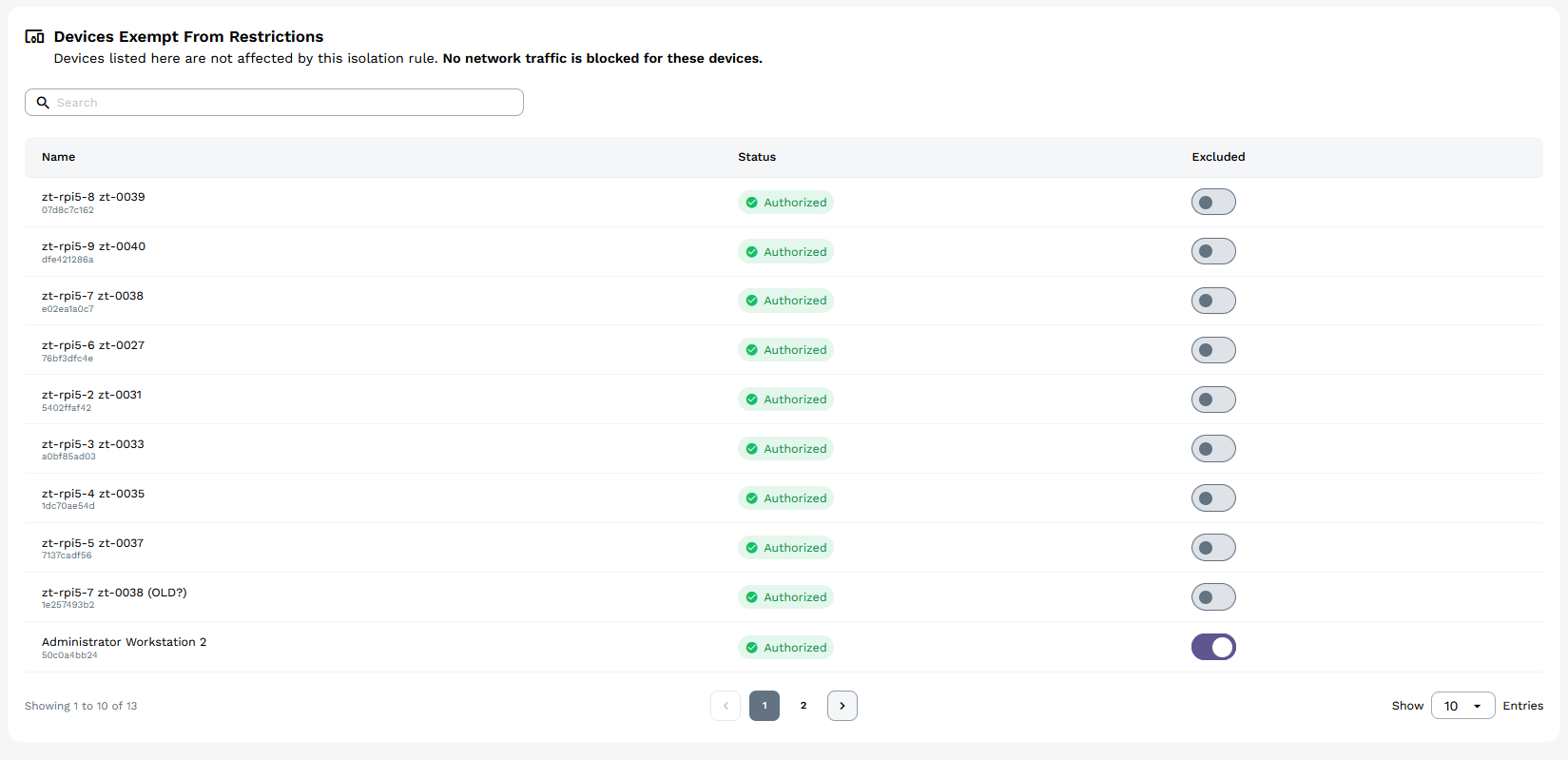
Example Use Case: In the screenshot, flow rules restrict all network traffic to HTTP, HTTPS, and Ping & Traceroute. This means all nodes can share web traffic and diagnostics with each other. However, only the excluded administrator device can use SSH traffic, preventing other nodes from accessing each other via SSH while still allowing the administrator full access.
Resetting Rules
To reset all rules to their defaults (disabling all flow rules and returning to allow-all traffic):
- Navigate to your network's Flow Rules tab
- Click the Restore Defaults button
- Confirm the reset
Resetting rules returns the network to its default state where all traffic is allowed.
Custom Flow Rules
Custom Flow Rules provide the full ZeroTier advanced rules engine.
How the Advanced Rules Engine Works
The ZeroTier rules engine differs from most other firewalls and SDN rules engines in several ways. The most immediately relevant of these is that the ZeroTier rules engine is stateless, meaning it lacks connection tracking. This means that bidirectional whitelisting can't be accomplished by simply whitelisting reply packets to established connections. Instead some thought must be put into how to allow both sides of a desired flow.
The decision to make our rules engine stateless was a design trade-off driven by several concerns. First we wanted to keep complexity, code footprint, and memory use very low to support small embedded devices. The second and more fundamental reason is that distributed stateful filtering requires distributed state synchronization. This would have added a large volume of additional sync traffic as well as introducing inescapable new sources of instability and failure and a lot of surface area for security vulnerabilities.
While ZeroTier lacks state tracking, its rules engine includes something not found anywhere else in the enterprise networking space: capability-based security and device tagging. Capabilities and tags allow extremely complex micro-segmented network rule schemes to be implemented in a sane, conceptual way that is both easier for human beings to understand and more efficient for machines to handle.
This section assumes some level of familiarity with network rules as they're commonly used on firewalls and routers, etc.
Rule Sets and Rule Evaluation
Rule sets are ordered lists of one or more rules, with each rule consisting of one or more match conditions followed by one action. As a rule set is evaluated, each match is tested in order and is then ANDed or ORed with the previous match result state. When an action is encountered it is taken if the result of the preceding matches is true. An action with no preceding matches is always taken. If no permissive actions are taken by any rule set the packet is discarded.
Here is a simple rule set that constrains Ethernet traffic on a network to only IPv4, ARP, or IPv6 as it would appear in the raw JSON format used by ZeroTier One's built-in network controller implementation. (Don't worry if this seems verbose and difficult. We have a more human-friendly way of writing rule sets, but before we introduce it it's important to understand what is really happening.)
[
  {
    "etherType": 2048,
    "not": true,
    "or": false,
    "type": "MATCH_ETHERTYPE"
  },
  {
    "etherType": 2054,
    "not": true,
    "or": false,
    "type": "MATCH_ETHERTYPE"
  },
  {
    "etherType": 34525,
    "not": true,
    "or": false,
    "type": "MATCH_ETHERTYPE"
  },
  {
    "type": "ACTION_DROP"
  },
  {
    "type": "ACTION_ACCEPT"
  }
]
This checks whether an Ethernet level packet is not IPv4 (ethertype 2048) and not IPv4 ARP (ethertype 2054) and not IPv6 (ethertype 34525). If all three matches evaluate to true (meaning the ethertype is none of these) then the drop action is taken. Otherwise the accept action is taken.
Networks have one base rule set that is applied to all traffic. Its size is constrained to 1024 entries (each match or action is an entry). It should be used to set the overall policies for all members of the network, and for most common use cases it's all you'll need. For more complex scenarios, both capabilities and tags provide methods of both managing complexity and scaling the overall size of a network's rule system.
Actions and Match Conditions
These are the available matches and actions in raw form. The rule definition language outlined in Rule Definition Language provides a friendlier way for human beings to specify rules.
| Action | Argument(s) | Description |
|---|---|---|
| ACTION_DROP | Drop packet and terminate all rule evaluation, including capabilities. | |
| ACTION_BREAK | Terminate evaluation of this rule set but continue evaluating capabilities. | |
| ACTION_ACCEPT | Accept packet and terminate further evaluation. | |
| ACTION_TEE | length,address | Send a copy of up to the first length bytes (-1 for all) to a ZeroTier address. |
| ACTION_WATCH | length,address | Like ACTION_TEE, but drops packets if the observer has not recently acknowledged them. |
| ACTION_REDIRECT | address | Transparently redirect this packet to a ZeroTier address without changing its headers. |
| Match Condition | Argument(s) | Description |
| MATCH_SOURCE_ZEROTIER_ADDRESS | zt | VL1 source address. |
| MATCH_DEST_ZEROTIER_ADDRESS | zt | VL1 destination address. |
| MATCH_MAC_SOURCE | mac | Ethernet source address. |
| MATCH_MAC_DEST | mac | Ethernet destination address. |
| MATCH_IPV4_SOURCE | ip | IPv4 source address. |
| MATCH_IPV4_DEST | ip | IPv4 destination address. |
| MATCH_IPV6_SOURCE | ip | IPv6 source address. |
| MATCH_IPV6_DEST | ip | IPv6 destination address. |
| MATCH_IP_TOS | mask,start,end | IP TOS field bitwise-ANDed with mask is within range. |
| MATCH_IP_PROTOCOL | ipProtocol | IP protocol number. |
| MATCH_ETHERTYPE | etherType | Ethernet frame type. |
| MATCH_ICMP | icmpType,icmpCode | ICMP type and code, if applicable. (V4 or V6) |
| MATCH_IP_SOURCE_PORT_RANGE | start,end | IP (V4 or V6) source port range (inclusive). |
| MATCH_IP_DEST_PORT_RANGE | start,end | IP (V4 or V6) destination port range (inclusive). |
| MATCH_CHARACTERISTICS | mask | Bitwise AND characteristic bits with mask, true if result is nonzero. |
| MATCH_FRAME_SIZE_RANGE | start,end | Ethernet frame size range (inclusive). |
| MATCH_RANDOM | probability | Match if a random 32-bit number is less than or equal to the probability. |
| MATCH_TAGS_DIFFERENCE | id,value | Difference between tags with this ID is less than or equal to the value. |
| MATCH_TAGS_BITWISE_AND | id,value | Tags ANDed together equal value. |
| MATCH_TAGS_BITWISE_OR | id,value | Tags ORed together equal value. |
| MATCH_TAGS_BITWISE_XOR | id,value | Tags XORed together equal value. |
| MATCH_TAGS_EQUAL | id,value | Both tags equal the same value. |
| MATCH_TAG_SENDER | id,value | Sending side's tag equals this value. |
| MATCH_TAG_RECEIVER | id,value | Receiving side's tag equals this value. |
Capabilities
A capability is a small rule set that is bundled into a credential object, signed by the network controller, and issued to only those member(s) permitted to exercise it. When a member detects that outgoing traffic does not match the base rule set but is allowed by one of its capabilities, it periodically pushes the matching capability credential to the recipient ahead of the packet(s) in question. Peer to peer capability distribution is automatic and is triggered by capability match.
When the recipient receives the capability it authenticates it by checking its signature and timestamp and, provided the capability is valid, adds it to the set of capabilities to apply to incoming traffic from the capability's owner. The sender has effectively told the recipient "I can too send this packet! Teacher says so!"
Capabilities allow large systems of rules to be broken down into functional aspects and then distributed intelligently only to those members with a need to know. This avoids the bandwidth and storage overhead of distributing huge monolithic rule sets and organizes rules conceptually to make them easier for administrators to understand.
Assigning Capabilities
Capabilities are defined in your flow rules and then assigned to specific devices.
In the UI (New Central):
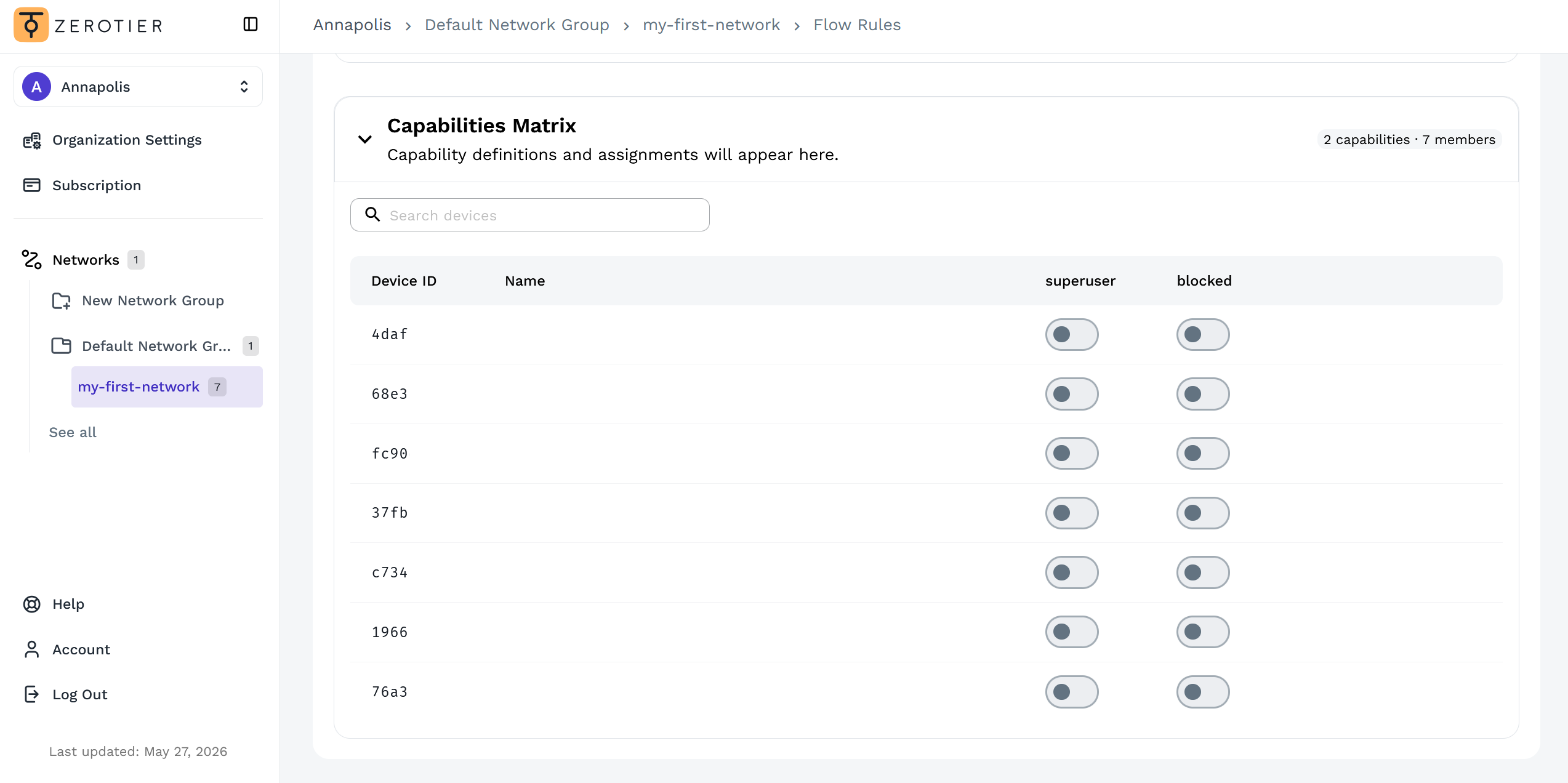
Once you've defined capabilities in your flow rules (see examples below), you can assign them to devices using the Capabilities Matrix:
- Navigate to your network's Flow Rules tab
- Scroll down to the Capabilities Matrix section
- Toggle capabilities on/off for each device
Via API:
You can also assign capabilities programmatically using the Central API. This is useful for automation and bulk operations.
There are three terminating actions that can be taken in a rule set: accept, break, and drop. The accept action terminates rule evaluation and accepts the packet. The break action terminates the evaluation of the current rule set but permits the further evaluation of capabilities. The drop action terminates rule evaluation and drops the packet without checking capabilities in the base rule set, but is equivalent to break in capability rule sets. In most cases break should be used unless certain traffic must be absolutely prohibited under any circumstance.
In the simple base rule set example in section 3.1 the drop action is
taken in the unapproved case. This means that Ethernet whitelisting
cannot be overridden by a capability. If we change ACTION_DROP in our
example to ACTION_BREAK, then it becomes possible to issue the
following capability:
[
  {
    "etherType": 2114,
    "not": false,
    "or": false,
    "type": "MATCH_ETHERTYPE"
  },
  {
    "type": "ACTION_ACCEPT"
  }
]
Ethertype 2114 is wake-on-LAN, a special packet that can cause some systems to wake from sleep mode. If we place the above tiny rule set into a capability and issue it to a device, this device but no others will now be permitted to send wake-on-LAN magic packets. (Wake-on-LAN requires hardware support so it would only work to target devices plugged into a physical network bridged to a ZeroTier network, but don't worry about that here. It's just an example of special traffic.)
Capability rule sets are limited to only 64 entries. The idea is to keep them small and simple. A capability should grant one thing or one small set of conceptually related things.
Tags
ZeroTier provides a second mechanism to control rule set complexity. Tags are 32-bit numeric key-value pair credentials that are issued to network members and signed by the controller. They are then distributed peer to peer on a need to know basis in a similar manner to capabilities.
Tags provide a way to conditionally drop or allow traffic between members by member classification. They allow very detailed network micro-segmentation by member role, permission, function, etc. without resulting in a combinatorial explosion in rules table size.
Assigning Tags
Tags are defined in your flow rules and then assigned values to specific devices.
In the UI (New Central):
Once you've defined tags in your flow rules (see examples below), you can assign tag values to devices using the Tags Matrix:
- Navigate to your network's Flow Rules tab
- Scroll down to the Tags Matrix section
- Select tag values for each device from the dropdown menus
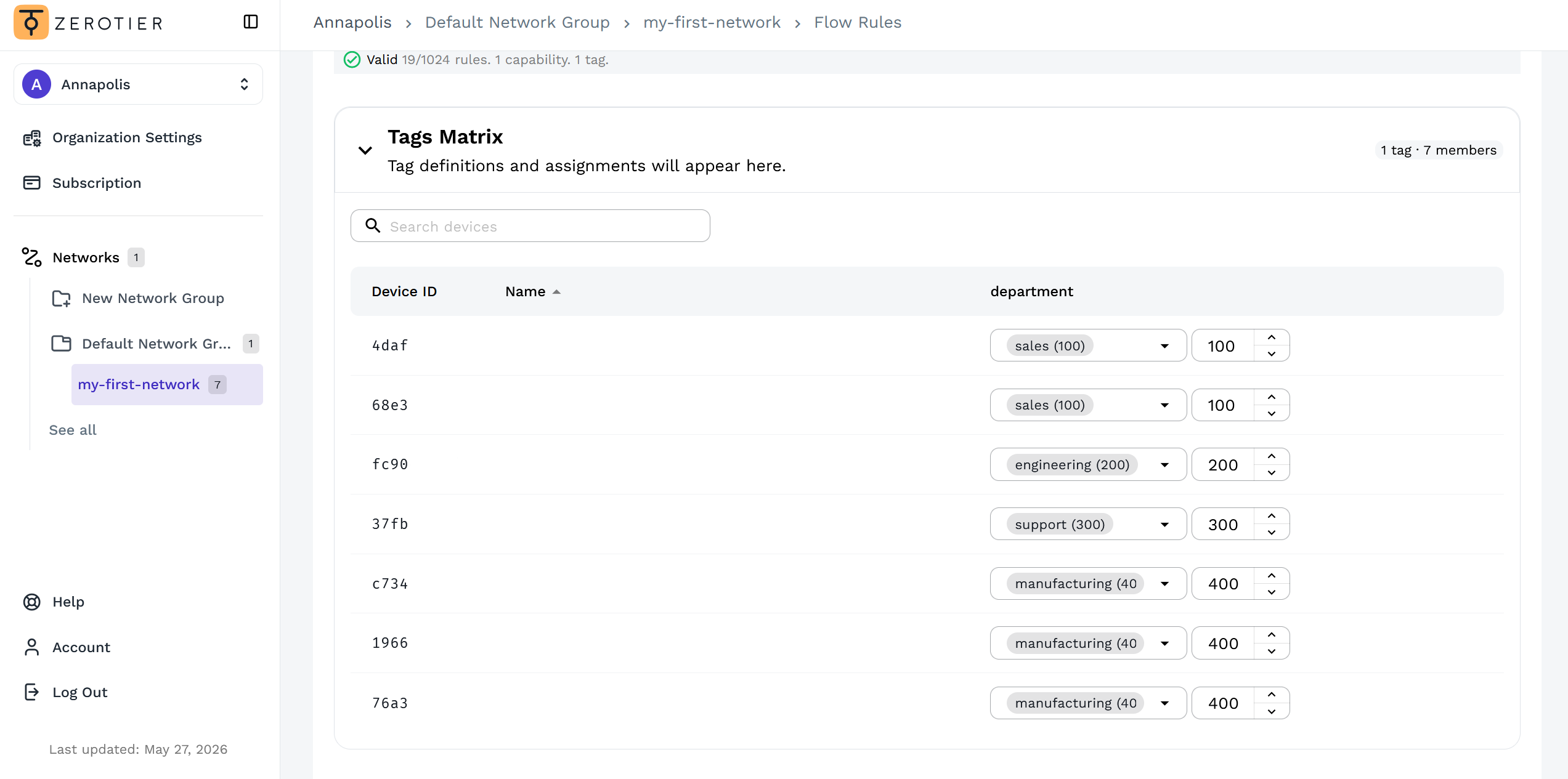
In the screenshot above, the department tag has been defined with enum values (sales=100, engineering=200, support=300, manufacturing=400), which appear as user-friendly dropdown options in the UI.
Via API:
You can also assign tag values programmatically using the Central API. This is useful for automation and bulk operations.
Tags Example
Let's say we want to permit traffic on TCP ports 139 and 445 (netbios/CIFS file sharing) only between systems that belong to the same department. Our company has 12,000 devices and 10 departments. Without tags this would require 144,000,000 rules, but with tags it can be accomplished by only a few.
First a tag is created to represent the department. Let's give it tag ID 100. Each member system receives the tag with a value from 1 to 10 indicating which department it belongs to. We can then add the following rules to our network's base rule set (or to a capability if so desired):
[
  {
    "type": "MATCH_IP_DEST_PORT_RANGE",
    "not": false,
    "or": false,
    "start": 139,
    "end": 139
  },
  {
    "type": "MATCH_IP_DEST_PORT_RANGE",
    "not": false,
    "or": true,
    "start": 445,
    "end": 445
  },
  {
    "type": "MATCH_IP_PROTOCOL",
    "not": false,
    "or": false,
    "ipProtocol": 6
  },
  {
    "type": "MATCH_TAGS_DIFFERENCE",
    "not": false,
    "or": false,
    "id": 100,
    "value": 0
  },
  {
    "type": "ACTION_ACCEPT"
  }
]
This tells members in our network to accept TCP packets on ports 139 or 445 if the difference between tags with tag ID 100 is zero, meaning they match. (If a member does not have a value for this tag, it does not match.) Now all members of the same department can access CIFS file shares, but CIFS sharing between departments could still be prohibited. (TCP whitelisting requires some additional rules due to the stateless nature of our rules engine. See the section below on rule design patterns.)
Tags can be compared on numeric value or as bit fields via several different bit mask operations allowing many different systems of member classification to be implemented.
Tags without a default value may behave confusingly. As a best
practice, use default 0 in your tag definitions.
Rule Definition Language
Raw rule sets are verbose and difficult to write, so we created a minimal rule definition language that's easier for human beings.
The parser for this language can be found in the rule-compiler subfolder of the ZeroTierOne project and as zerotier-rule-compiler on NPM. It's written in JavaScript and is the same code that powers the in-browser editor in ZeroTier Central.
An Introductory Example
# Whitelist only IPv4 (/ARP) and IPv6 traffic and allow only ZeroTier-assigned IP addresses
drop                      # drop cannot be overridden by capabilities
  not ethertype ipv4      # frame is not ipv4
  and not ethertype arp   # AND is not ARP
  and not ethertype ipv6  # AND is not ipv6
  or not chr ipauth       # OR IP addresses are not authenticated (1.2.0+ only!)
;

# Allow SSH, HTTP, and HTTPS by allowing all TCP packets (including SYN/!ACK) to these ports
accept
  dport 22 or dport 80 or dport 443
  and ipprotocol tcp
;

# Create a tag for which department someone is in
tag department
  id 1000                 # arbitrary, but must be unique
  enum 100 sales          # has no meaning to filter, but used in UI to offer a selection
  enum 200 engineering
  enum 300 support
  enum 400 manufacturing
  default 0
;

# Allow Windows CIFS and netbios between computers in the same department using a tag
accept
  dport 139 or dport 445
  and ipprotocol tcp
  and tdiff department 0  # difference between department tags is 0, meaning they match
;

# Drop TCP SYN,!ACK packets (new connections) not explicitly whitelisted above
break                     # break can be overridden by a capability
  chr tcp_syn             # TCP SYN (TCP flags will never match non-TCP packets)
  and not chr tcp_ack     # AND not TCP ACK
;

# Create a capability called "superuser" that lets its holders override all but the initial "drop"
cap superuser
  id 1000 # arbitrary, but must be unique
  accept; # allow with no match conditions means allow anything and everything
;

cap blocked
  id 800
  drop;
;

# Accept other packets
accept;
This creates a network that can pass IPv4 (and ARP) and IPv6 traffic but
no other Ethernet frame types. In addition the not chr ipauth
condition drops traffic between IP addresses that have not been assigned
by ZeroTier to their respective sources or destinations, blocking all IP
spoofing. These are enforced with a hard drop, preventing them from
being overridden by any capability.
All UDP is allowed, but all non-whitelisted new TCP connections
(SYN/!ACK packets) are blocked. This is done with a soft break,
allowing it to be overridden by capabilities. New TCP connections are
allowed on ports 22, 80, and 443 for everyone. Windows file sharing is
allowed only between computers in the same department by way of a tag. A
super-user capability that can be assigned to administrative nodes
allows the sender to initiate any kind of connection.
See TCP Whitelisting for a discussion of how we accomplish TCP whitelisting here.
After making any changes to your flow rules, capabilities, or tags, remember to click Save or Submit to apply them to your network.
Rule Definition Language Syntax
# The remainder of this line is a comment.

action [ ... args ... ]
  [and|or] [not] match [... args ...]
  [ ... additional matches ... ]
;

tag <name>
  id <id>                 # arbitrary unique 32-bit ID
  [default <value>]       # default tag value to assign to members
  [enum <value> <name>]   # value can be any 32-bit unsigned integer
  [flag <bit> <name>]     # bit can be 0 to 31
  [ ... additional enums or flags ... ]
;

cap <name>
  id <id>                 # arbitrary unique 32-bit ID
  action [ ... args ... ]
    [ ... ]
  ;
  [ ... additional action blocks ... ]
;

macro <name[($var1,...)]>
  action [ ... args ... ]
    [ ... ]
  ;
;

include <name(value,...)>
Each action, tag, capability, or macro block ends with a semicolon. White space separates things. Indentation is not significant. Hash symbols indicate that the remainder of a line is a comment.
As described in sections Rule Sets and Rule Evaluation through Tags, a rule set is composed of one or more sequences of match,[match],…,action in which the action is taken if the chain of matches evaluates to true. Capabilities are small bundles of rules that can be assigned to nodes to give them special abilities, and tags are key/value pairs that can be assigned to nodes to allow rules to be selectively applied.
Macros are just a convenient way of defining more complex actions that can then be applied in multiple places. An example of a macro might be:
macro allowtcp($port)
  accept
    ipprotocol tcp
    and dport $port
  ;
;
You could then allow TCP ports in a standard TCP whitelisting scheme by just saying:
include allowtcp(80)
include allowtcp(443)
include allowtcp(8080)
Tag enum and flag directives have no meaning to the actual ZeroTier
rules engine, but they can be used by user interfaces like ZeroTier
Central to make it easier to assign and search tags.
Actions, Matches, Operators, and Constants
| Action | Argument(s) | Description |
|---|---|---|
| drop | Drop packet and terminate all rule evaluation, including capabilities. | |
| break | Terminate evaluation of this rule set but continue evaluating capabilities. | |
| accept | Accept packet and terminate further evaluation. | |
| tee | <length>; <address> | Send a copy of up to the first length bytes (-1 for all) to a ZeroTier address. |
| watch | <length> <address> | Like tee, but drops packets if the observer has not recently acknowledged them. |
| redirect | <address> | Transparently redirect this packet to a ZeroTier address without changing its headers. |
| Match Condition | Argument(s) | Description |
| ztsrc | <address> | VL1 source address. |
| ztdest | <address> | VL1 destination address. |
| macsrc | <address> | Ethernet source address. |
| macdest | <address> | Ethernet destination address. |
| ipsrc | <address/prefix> | Source IP address or network (V4 or V6 auto-detected). |
| ipdest | <address/prefix> | Destination IP address or network (V4 or V6 auto-detected). |
| iptos | <mask> <start[-end]> | IP TOS field bitwise-ANDed with mask is within range. |
| ipprotocol | <protocol> | IP protocol number. |
| ethertype | <type> | Ethernet frame type. |
| icmp | <type> <code> | ICMP type (V4 or V6) and code. Use -1 for code if not applicable. |
| sport | <start[-end]> | IP (V4 or V6) source port range (inclusive). |
| dport | <start[-end]> | IP (V4 or V6) destination port range (inclusive). |
| chr | <mask/name> | Bitwise AND characteristic bits with mask, true if result is nonzero. |
| framesize | <start[-end]> | Ethernet frame size range (inclusive). |
| random | <probability> | Match randomly with probability 0.0 (0%) to 1.0 (100%). |
| tdiff | <id> <value> | Difference between tags (absolute value) with this ID is less than or equal to the value. |
| tand | <id> <value> | Tags ANDed together equal value. |
| tor | <id> <value> | Tags ORed together equal value. |
| txor | <id> <value> | Tags XORed together equal value. |
| teq | <id> <value> | Both tags equal the same value. |
| tseq | <id> <value> | Sending side's tag equals this value. |
| treq | <id> <value> | Receiving side's tag equals this value. |
Match conditions may be joined by and (default if none specified) or or and may be modified by not.
Match conditions are evaluated from left to right; a and b or c is a different rule than b or c and a.
The rules language doesn't support parentheses, but for example purposes the above would evaluate as: (a and b) or c vs (b or c) and a
Traffic won't be teed if it is blocked by a break or drop.
For convenience the following symbols can be used when matching on certain packet attributes:
-
IP protocols (
ipprotocol): icmp (for IPv4), igmp, ipip, tcp, egp, igp, udp, rdp, esp, ah, icmp6 (for IPv6), l2tp, sctp, and udplite. -
Ethernet frame types (
ethertype): ipv4, arp, ipv6, wol (wake on LAN), rarp, atalk, aarp, ipx_a, ipx_b. -
Packet characteristics (bit masks for
chr):- inbound: packet is being filtered on the receiving side (use
not inboundfor sending side) - multicast: destination is a multicast or broadcast MAC
- broadcast: destination is the broadcast MAC
- ipauth: sender IP is assigned by ZeroTier to the sending node
- tcp_fin: packet is TCP with FIN flag set
- tcp_syn: packet is TCP with SYN flag set
- tcp_rst: packet is TCP with RST flag set
- tcp_psh: packet is TCP with PSH flag set
- tcp_ack: packet is TCP with ACK flag set
- tcp_urg: packet is TCP with URG flag set
- tcp_ece: packet is TCP with ECE flag set
- tcp_cwr: packet is TCP with CWR flag set
- tcp_ns: packet is TCP with NS flag set
- tcp_rs2: packet is TCP with RS2 (reserved bit 2) flag set
- tcp_rs1: packet is TCP with RS1 (reserved bit 1) flag set
- tcp_rs0: packet is TCP with RS0 (reserved bit 0) flag set
- inbound: packet is being filtered on the receiving side (use
Useful Design Patterns
TCP Whitelisting
First, add this at or near the bottom of your rules:
# Block TCP SYN,!ACK to prevent new non-whitelisted TCP connections from being initiated
# unless previously whitelisted or allowed by a capability.
break chr tcp_syn and not chr tcp_ack;
Then above the SYN,!ACK break (or in a capability) add rules to allow TCP packets with permitted destination ports:
# Allow TCP port 80 (HTTP)
accept ipprotocol tcp and dport 80;
ZeroTier's filter is stateless. If we block all TCP packets except those with the correct destination port, this will prevent reply packets from returning to their senders.
Allowing reply packets with the correct (inverse) source port seems like a simple fix, but this is insecure as it allows anyone to initiate any TCP connection if they bind to whitelisted source ports.
The best solution is to block all non-whitelisted TCP packets with flags SYN,!ACK (SYN and not ACK) and then whitelist desired destination ports. This way TCP replies and control traffic are allowed, but new connections cannot be opened unless they are permitted.
Locking Down UDP
UDP is tougher to deal with in a stateless paradigm. It's connectionless so there is no way to specifically select a new session vs. an existing session. The best way to lock down UDP on a network is to use tags to allow it to and from things like DNS servers that need to speak it.
tag udpserver
  id 1000
  default 0
;

accept
  ipprotocol udp
  and tor udpserver 1
  or chr multicast
;

break ipprotocol udp;
First we define a tag called udpserver with a default value of 0. We
don't set any enums or flags for this tag since it will be used as a
boolean. For servers that need to respond to DNS queries, set the
udpserver to 1.
Then we accept UDP traffic if the value of the udpserver tag is 1
when both sender and receiver tags are ORed together, or if UDP traffic
is multicast. This allows multicast mDNS and Netbios announcements and
allows UDP traffic to and from UDP servers, but prohibits other
horizontal UDP traffic.
Traffic Observation and Interception
Here's a simple rule to monitor everything:
# Send a copy of EVERY packet on both sender and receiver side to ZeroTier address "deadbeef11".
tee -1 deadbeef11;
That's going to flood deadbeef11 with two full copies of every single
packet, since it will match on both the sender and the recipient side. A
less bandwidth-intensive security monitor setup might look like this:
tee 128 deadbeef11
  chr inbound
  and chr tcp_syn or chr tcp_rst or chr tcp_fin
  or random 0.1
;

tee 128 deadbeef22
  not chr inbound
  and chr tcp_syn or chr tcp_rst or chr tcp_fin
  or random 0.1
;
This is a bit more clever. It sends the first 128 bytes of every TCP SYN, RST, or FIN packet (TCP connection open and close) to one observer on the inbound side and another observer on the outbound side. It also sends the first 128 bytes of other packets with a probability of one in ten. The first 128 bytes of a packet will be enough to see the Ethernet and IP headers as well as layer 4+ information about many protocols.
This would allow observers to watch every new TCP connection on the network and also passively monitor other traffic in a "fuzzy" probabilistic fashion without using very much bandwidth. We split sending and receiving observers to prevent duplicate packets and also to allow us to detect cases where one side is failing to tee traffic more frequently than would be easily explained by packet loss.
There are many, many variations on the above that are possible but hopefully these will be enough to get you started.
Passive out-of-line monitoring with tee is not perfect. If bandwidth between two parties exceeds the bandwidth of one or both parties to the observer, packets will get dropped. It also provides no mechanism to filter traffic in depth since the observer cannot directly intervene (though it could de-authorize a member via the controller API).
Active in-line monitoring can be achieved with redirect:
redirect deadbeef11
  dport 80 or sport 80
  and ipprotocol tcp
;
This will pipe all HTTP traffic through deadbeef11. The target node
will receive each Ethernet frame intact including its original Ethernet
source and destination MAC address. To forward the packet on to its
final destination, simply re-send it unmodified via the same interface
on which it was received. The intermediate node could scan, modify, and
interrupt HTTP traffic across the network. To regular network
participants this is completely invisible as it occurs at layer 2
(Ethernet), though some performance degradation may be noticed
especially if the link is running across WAN.
The Classified System Pattern
One useful pattern for access control resembles the way military organizations classify data. Information is deemed classified, and only those who have the required level of classification are allowed to access it.
A model resembling this can be implemented in ZeroTier network rules as follows:
# Is this member classified?
tag classified
  id 2
  enum 0 no
  enum 1 secret
  enum 2 top
  default no
;

# Clearance flags (a bit like groups)
tag clearance
  id 1
  default 0
  flag 0 staging
  flag 1 production
  flag 2 financial
  flag 3 security
  flag 4 executive
;

# If one party is classified, require at least one overlapping clearance bit
break
  not tor classified 0
  and tand clearance 0
;
Initially members will be assigned a default classification of 0 ("no"). These can freely communicate since the bitwise OR of their classified tags will be zero. Neither member possesses a classification requirement.
To restrict access to a member, set its classified tag to secret or
top. (In this example there is no difference, but two levels are
included in case you want to implement some kind of more detailed
segmentation based on these.) Now the first match
(not tor classified 0) will be true and the packet will be dropped
unless the two communicating members have at least one clearance bit
in common (tand clearance 0).
Example Rule Sets
This section provides practical examples to get you started with ZeroTier network rules. Each example includes a complete rule set and explanation.
Quick Examples
These short patterns mirror the starter examples in the rules editor.
Allow only specific services
# Allow only HTTPS; default-drop blocks everything else.
# Accept return traffic so established connections keep working.
accept chr tcp_ack;
accept dport 443;
Restrict traffic to a subnet
# Allow traffic within the 10.0.0.0/24 subnet; drop the rest.
drop not ipdest 10.0.0.0/24;
accept;
Only same-environment devices may talk
# Tag each device dev/staging/prod (set values in the Tags matrix).
tag environment
  id 100
  enum 0 dev
  enum 1 staging
  enum 2 prod
;
# Block traffic between different environments; allow within the same one.
# Uses break (not drop) so an admin capability can still override it.
break not tdiff environment 0;
accept;
Override capability for admins
# A capability whose holders bypass your other rules.
# Grant it to specific devices in the Capabilities matrix.
cap superuser
  id 1000
  accept;
;
Example 1: Allow Only SSH and Web Traffic
Scenario: You want to allow only SSH (port 22) and web traffic (ports 80, 443) between devices.
# Allow SSH
accept
  ipprotocol tcp
  and dport 22;

# Allow HTTP and HTTPS
accept
  ipprotocol tcp
  and dport 80 or dport 443;

# Block new TCP connections not explicitly allowed
break
  chr tcp_syn
  and not chr tcp_ack;

# Accept other traffic (replies, UDP, etc.)
accept;
Explanation: This allows new TCP connections only on ports 22, 80, and 443. The break rule blocks new TCP connections (SYN without ACK) that weren't explicitly allowed above, while allowing reply packets and other protocols.
Example 2: Database Server Access Control
Scenario: Allow only web servers to connect to database servers on port 5432 (PostgreSQL).
# Tag definition for server types
tag server_type
  id 1
  enum 0 web
  enum 1 database
  enum 2 other
  default 2;

# Allow database connections only from web servers to database servers
accept
  ipprotocol tcp
  and dport 5432
  and tseq server_type 0    # sender must be web server (value 0)
  and treq server_type 1;   # receiver must be database server (value 1)

# Block new database connections from non-web servers
break
  ipprotocol tcp
  and dport 5432
  and chr tcp_syn
  and not chr tcp_ack;

# Block new TCP connections by default
break
  chr tcp_syn
  and not chr tcp_ack;

# Accept other traffic
accept;
Usage:
- Set web servers:
server_type = 0(web) - Set database servers:
server_type = 1(database) - Other devices get
server_type = 2(other) by default
Example 3: Development Environment Isolation
Scenario: Separate development, staging, and production environments.
# Environment tags
tag environment
  id 2
  enum 0 dev
  enum 1 staging
  enum 2 production
  default dev;

# Block cross-environment traffic
break
  not tdiff environment 0;  # environments don't match (difference is non-zero)

# Accept all other traffic
accept;
Usage:
- Assign
environmenttags to devices appropriately - Devices can only communicate within the same environment
- To allow admin override, issue a capability with an
accept;rule to specific admin devices
Example 4: Guest Network Restrictions
Scenario: Allow guests internet access but block access to internal devices.
# Device type tags
tag device_type
  id 3
  enum 0 internal
  enum 1 guest
  default internal;

# Block guest devices from accessing internal devices
drop
  tseq device_type 1      # sender is guest
  and treq device_type 0; # receiver is internal

# Block internal devices from initiating connections to guests
drop
  tseq device_type 0      # sender is internal
  and treq device_type 1; # receiver is guest

# Accept all other traffic
accept;
Usage: Set guest devices to device_type = guest. Internal devices default to internal.
Example 5: Monitoring All Traffic
Scenario: Send copies of all packets to a monitoring server for analysis.
# Send all traffic to monitoring server (replace with actual node ID)
tee abcd1234567890;

# Accept all traffic
accept;
Usage: Replace abcd1234567890 with the actual ZeroTier node ID of your monitoring server.
Example 6: Emergency Lockdown
Scenario: Quickly restrict all traffic to only essential services during an incident.
# Emergency lockdown - only allow SSH for management
drop
  not dport 22
  and not sport 22;

# Accept SSH traffic only
accept;
Usage: Apply this rule set during security incidents to maintain management access while blocking other traffic.
Testing Your Rules
Before deploying rules to production:
- Test in a lab environment with the same device types and network topology
- Use
zerotier-cli dumpto examine rule evaluation on test devices - Start with permissive rules and gradually tighten restrictions
- Monitor connectivity after each rule change to ensure expected behavior
Common Mistakes
- Forgetting bidirectional traffic: Rules must allow both directions for most protocols
- TCP vs UDP confusion: Ensure you're matching the correct protocol
- Tag assignment errors: Verify tags are assigned correctly on all devices
- Rule order matters: More specific rules should come before general ones
- Testing with wrong protocols: SSH uses TCP, DNS uses UDP, etc.
Getting Help
If your rules aren't working as expected:
- Check the Rules FAQ for common issues
- Use
zerotier-cli dumpto see rule evaluation details - Verify device tags and capabilities are assigned correctly
- Test connectivity step by step, adding one rule at a time
Legacy Central Flow Rules
The full custom rules engine is available to all users on Legacy Central.
To access Flow Rules:
- Log in to Legacy Central
- Select your network
- Navigate to the Flow Rules section
How the Advanced Rules Engine Works
The ZeroTier rules engine differs from most other firewalls and SDN rules engines in several ways. The most immediately relevant of these is that the ZeroTier rules engine is stateless, meaning it lacks connection tracking. This means that bidirectional whitelisting can't be accomplished by simply whitelisting reply packets to established connections. Instead some thought must be put into how to allow both sides of a desired flow.
The decision to make our rules engine stateless was a design trade-off driven by several concerns. First we wanted to keep complexity, code footprint, and memory use very low to support small embedded devices. The second and more fundamental reason is that distributed stateful filtering requires distributed state synchronization. This would have added a large volume of additional sync traffic as well as introducing inescapable new sources of instability and failure and a lot of surface area for security vulnerabilities.
While ZeroTier lacks state tracking, its rules engine includes something not found anywhere else in the enterprise networking space: capability-based security and device tagging. Capabilities and tags allow extremely complex micro-segmented network rule schemes to be implemented in a sane, conceptual way that is both easier for human beings to understand and more efficient for machines to handle.
This section assumes some level of familiarity with network rules as they're commonly used on firewalls and routers, etc.
Rule Sets and Rule Evaluation
Rule sets are ordered lists of one or more rules, with each rule consisting of one or more match conditions followed by one action. As a rule set is evaluated, each match is tested in order and is then ANDed or ORed with the previous match result state. When an action is encountered it is taken if the result of the preceding matches is true. An action with no preceding matches is always taken. If no permissive actions are taken by any rule set the packet is discarded.
Here is a simple rule set that constrains Ethernet traffic on a network to only IPv4, ARP, or IPv6 as it would appear in the raw JSON format used by ZeroTier One's built-in network controller implementation. (Don't worry if this seems verbose and difficult. We have a more human-friendly way of writing rule sets, but before we introduce it it's important to understand what is really happening.)
[
  {
    "etherType": 2048,
    "not": true,
    "or": false,
    "type": "MATCH_ETHERTYPE"
  },
  {
    "etherType": 2054,
    "not": true,
    "or": false,
    "type": "MATCH_ETHERTYPE"
  },
  {
    "etherType": 34525,
    "not": true,
    "or": false,
    "type": "MATCH_ETHERTYPE"
  },
  {
    "type": "ACTION_DROP"
  },
  {
    "type": "ACTION_ACCEPT"
  }
]
This checks whether an Ethernet level packet is not IPv4 (ethertype 2048) and not IPv4 ARP (ethertype 2054) and not IPv6 (ethertype 34525). If all three matches evaluate to true (meaning the ethertype is none of these) then the drop action is taken. Otherwise the accept action is taken.
Networks have one base rule set that is applied to all traffic. Its size is constrained to 1024 entries (each match or action is an entry). It should be used to set the overall policies for all members of the network, and for most common use cases it's all you'll need. For more complex scenarios, both capabilities and tags provide methods of both managing complexity and scaling the overall size of a network's rule system.
Actions and Match Conditions
These are the available matches and actions in raw form. The rule definition language outlined in Rule Definition Language provides a friendlier way for human beings to specify rules.
| Action | Argument(s) | Description |
|---|---|---|
| ACTION_DROP | Drop packet and terminate all rule evaluation, including capabilities. | |
| ACTION_BREAK | Terminate evaluation of this rule set but continue evaluating capabilities. | |
| ACTION_ACCEPT | Accept packet and terminate further evaluation. | |
| ACTION_TEE | length,address | Send a copy of up to the first length bytes (-1 for all) to a ZeroTier address. |
| ACTION_WATCH | length,address | Like ACTION_TEE, but drops packets if the observer has not recently acknowledged them. |
| ACTION_REDIRECT | address | Transparently redirect this packet to a ZeroTier address without changing its headers. |
| Match Condition | Argument(s) | Description |
| MATCH_SOURCE_ZEROTIER_ADDRESS | zt | VL1 source address. |
| MATCH_DEST_ZEROTIER_ADDRESS | zt | VL1 destination address. |
| MATCH_MAC_SOURCE | mac | Ethernet source address. |
| MATCH_MAC_DEST | mac | Ethernet destination address. |
| MATCH_IPV4_SOURCE | ip | IPv4 source address. |
| MATCH_IPV4_DEST | ip | IPv4 destination address. |
| MATCH_IPV6_SOURCE | ip | IPv6 source address. |
| MATCH_IPV6_DEST | ip | IPv6 destination address. |
| MATCH_IP_TOS | mask,start,end | IP TOS field bitwise-ANDed with mask is within range. |
| MATCH_IP_PROTOCOL | ipProtocol | IP protocol number. |
| MATCH_ETHERTYPE | etherType | Ethernet frame type. |
| MATCH_ICMP | icmpType,icmpCode | ICMP type and code, if applicable. (V4 or V6) |
| MATCH_IP_SOURCE_PORT_RANGE | start,end | IP (V4 or V6) source port range (inclusive). |
| MATCH_IP_DEST_PORT_RANGE | start,end | IP (V4 or V6) destination port range (inclusive). |
| MATCH_CHARACTERISTICS | mask | Bitwise AND characteristic bits with mask, true if result is nonzero. |
| MATCH_FRAME_SIZE_RANGE | start,end | Ethernet frame size range (inclusive). |
| MATCH_RANDOM | probability | Match if a random 32-bit number is less than or equal to the probability. |
| MATCH_TAGS_DIFFERENCE | id,value | Difference between tags with this ID is less than or equal to the value. |
| MATCH_TAGS_BITWISE_AND | id,value | Tags ANDed together equal value. |
| MATCH_TAGS_BITWISE_OR | id,value | Tags ORed together equal value. |
| MATCH_TAGS_BITWISE_XOR | id,value | Tags XORed together equal value. |
| MATCH_TAGS_EQUAL | id,value | Both tags equal the same value. |
| MATCH_TAG_SENDER | id,value | Sending side's tag equals this value. |
| MATCH_TAG_RECEIVER | id,value | Receiving side's tag equals this value. |
Capabilities
A capability is a small rule set that is bundled into a credential object, signed by the network controller, and issued to only those member(s) permitted to exercise it. When a member detects that outgoing traffic does not match the base rule set but is allowed by one of its capabilities, it periodically pushes the matching capability credential to the recipient ahead of the packet(s) in question. Peer to peer capability distribution is automatic and is triggered by capability match.
When the recipient receives the capability it authenticates it by checking its signature and timestamp and, provided the capability is valid, adds it to the set of capabilities to apply to incoming traffic from the capability's owner. The sender has effectively told the recipient "I can too send this packet! Teacher says so!"
Capabilities allow large systems of rules to be broken down into functional aspects and then distributed intelligently only to those members with a need to know. This avoids the bandwidth and storage overhead of distributing huge monolithic rule sets and organizes rules conceptually to make them easier for administrators to understand.
Assigning Capabilities
Capabilities are defined in your flow rules and then assigned to specific devices via the Legacy Central interface or API.
There are three terminating actions that can be taken in a rule set: accept, break, and drop. The accept action terminates rule evaluation and accepts the packet. The break action terminates the evaluation of the current rule set but permits the further evaluation of capabilities. The drop action terminates rule evaluation and drops the packet without checking capabilities in the base rule set, but is equivalent to break in capability rule sets. In most cases break should be used unless certain traffic must be absolutely prohibited under any circumstance.
In the simple base rule set example in section 3.1 the drop action is
taken in the unapproved case. This means that Ethernet whitelisting
cannot be overridden by a capability. If we change ACTION_DROP in our
example to ACTION_BREAK, then it becomes possible to issue the
following capability:
[
  {
    "etherType": 2114,
    "not": false,
    "or": false,
    "type": "MATCH_ETHERTYPE"
  },
  {
    "type": "ACTION_ACCEPT"
  }
]
Ethertype 2114 is wake-on-LAN, a special packet that can cause some systems to wake from sleep mode. If we place the above tiny rule set into a capability and issue it to a device, this device but no others will now be permitted to send wake-on-LAN magic packets. (Wake-on-LAN requires hardware support so it would only work to target devices plugged into a physical network bridged to a ZeroTier network, but don't worry about that here. It's just an example of special traffic.)
Capability rule sets are limited to only 64 entries. The idea is to keep them small and simple. A capability should grant one thing or one small set of conceptually related things.
Tags
ZeroTier provides a second mechanism to control rule set complexity. Tags are 32-bit numeric key-value pair credentials that are issued to network members and signed by the controller. They are then distributed peer to peer on a need to know basis in a similar manner to capabilities.
Tags provide a way to conditionally drop or allow traffic between members by member classification. They allow very detailed network micro-segmentation by member role, permission, function, etc. without resulting in a combinatorial explosion in rules table size.
Assigning Tags
Tags are defined in your flow rules and then assigned values to specific devices via the Legacy Central interface or API.
Tags Example
Let's say we want to permit traffic on TCP ports 139 and 445 (netbios/CIFS file sharing) only between systems that belong to the same department. Our company has 12,000 devices and 10 departments. Without tags this would require 144,000,000 rules, but with tags it can be accomplished by only a few.
First a tag is created to represent the department. Let's give it tag ID 100. Each member system receives the tag with a value from 1 to 10 indicating which department it belongs to. We can then add the following rules to our network's base rule set (or to a capability if so desired):
[
  {
    "type": "MATCH_IP_DEST_PORT_RANGE",
    "not": false,
    "or": false,
    "start": 139,
    "end": 139
  },
  {
    "type": "MATCH_IP_DEST_PORT_RANGE",
    "not": false,
    "or": true,
    "start": 445,
    "end": 445
  },
  {
    "type": "MATCH_IP_PROTOCOL",
    "not": false,
    "or": false,
    "ipProtocol": 6
  },
  {
    "type": "MATCH_TAGS_DIFFERENCE",
    "not": false,
    "or": false,
    "id": 100,
    "value": 0
  },
  {
    "type": "ACTION_ACCEPT"
  }
]
This tells members in our network to accept TCP packets on ports 139 or 445 if the difference between tags with tag ID 100 is zero, meaning they match. (If a member does not have a value for this tag, it does not match.) Now all members of the same department can access CIFS file shares, but CIFS sharing between departments could still be prohibited. (TCP whitelisting requires some additional rules due to the stateless nature of our rules engine. See the section below on rule design patterns.)
Tags can be compared on numeric value or as bit fields via several different bit mask operations allowing many different systems of member classification to be implemented.
Tags without a default value may behave confusingly. As a best
practice, use default 0 in your tag definitions.
Rule Definition Language
Raw rule sets are verbose and difficult to write, so we created a minimal rule definition language that's easier for human beings.
The parser for this language can be found in the rule-compiler subfolder of the ZeroTierOne project and as zerotier-rule-compiler on NPM. It's written in JavaScript and is the same code that powers the in-browser editor in ZeroTier Central.
An Introductory Example
# Whitelist only IPv4 (/ARP) and IPv6 traffic and allow only ZeroTier-assigned IP addresses
drop                      # drop cannot be overridden by capabilities
  not ethertype ipv4      # frame is not ipv4
  and not ethertype arp   # AND is not ARP
  and not ethertype ipv6  # AND is not ipv6
  or not chr ipauth       # OR IP addresses are not authenticated (1.2.0+ only!)
;

# Allow SSH, HTTP, and HTTPS by allowing all TCP packets (including SYN/!ACK) to these ports
accept
  dport 22 or dport 80 or dport 443
  and ipprotocol tcp
;

# Create a tag for which department someone is in
tag department
  id 1000                 # arbitrary, but must be unique
  enum 100 sales          # has no meaning to filter, but used in UI to offer a selection
  enum 200 engineering
  enum 300 support
  enum 400 manufacturing
  default 0
;

# Allow Windows CIFS and netbios between computers in the same department using a tag
accept
  dport 139 or dport 445
  and ipprotocol tcp
  and tdiff department 0  # difference between department tags is 0, meaning they match
;

# Drop TCP SYN,!ACK packets (new connections) not explicitly whitelisted above
break                     # break can be overridden by a capability
  chr tcp_syn             # TCP SYN (TCP flags will never match non-TCP packets)
  and not chr tcp_ack     # AND not TCP ACK
;

# Create a capability called "superuser" that lets its holders override all but the initial "drop"
cap superuser
  id 1000 # arbitrary, but must be unique
  accept; # allow with no match conditions means allow anything and everything
;

cap blocked
  id 800
  drop;
;

# Accept other packets
accept;
This creates a network that can pass IPv4 (and ARP) and IPv6 traffic but
no other Ethernet frame types. In addition the not chr ipauth
condition drops traffic between IP addresses that have not been assigned
by ZeroTier to their respective sources or destinations, blocking all IP
spoofing. These are enforced with a hard drop, preventing them from
being overridden by any capability.
All UDP is allowed, but all non-whitelisted new TCP connections
(SYN/!ACK packets) are blocked. This is done with a soft break,
allowing it to be overridden by capabilities. New TCP connections are
allowed on ports 22, 80, and 443 for everyone. Windows file sharing is
allowed only between computers in the same department by way of a tag. A
super-user capability that can be assigned to administrative nodes
allows the sender to initiate any kind of connection.
See TCP Whitelisting for a discussion of how we accomplish TCP whitelisting here.
After making any changes to your flow rules, capabilities, or tags, remember to click Save or Submit to apply them to your network.
Rule Definition Language Syntax
# The remainder of this line is a comment.

action [ ... args ... ]
  [and|or] [not] match [... args ...]
  [ ... additional matches ... ]
;

tag <name>
  id <id>                 # arbitrary unique 32-bit ID
  [default <value>]       # default tag value to assign to members
  [enum <value> <name>]   # value can be any 32-bit unsigned integer
  [flag <bit> <name>]     # bit can be 0 to 31
  [ ... additional enums or flags ... ]
;

cap <name>
  id <id>                 # arbitrary unique 32-bit ID
  action [ ... args ... ]
    [ ... ]
  ;
  [ ... additional action blocks ... ]
;

macro <name[($var1,...)]>
  action [ ... args ... ]
    [ ... ]
  ;
;

include <name(value,...)>
Each action, tag, capability, or macro block ends with a semicolon. White space separates things. Indentation is not significant. Hash symbols indicate that the remainder of a line is a comment.
As described in sections Rule Sets and Rule Evaluation through Tags, a rule set is composed of one or more sequences of match,[match],…,action in which the action is taken if the chain of matches evaluates to true. Capabilities are small bundles of rules that can be assigned to nodes to give them special abilities, and tags are key/value pairs that can be assigned to nodes to allow rules to be selectively applied.
Macros are just a convenient way of defining more complex actions that can then be applied in multiple places. An example of a macro might be:
macro allowtcp($port)
  accept
    ipprotocol tcp
    and dport $port
  ;
;
You could then allow TCP ports in a standard TCP whitelisting scheme by just saying:
include allowtcp(80)
include allowtcp(443)
include allowtcp(8080)
Tag enum and flag directives have no meaning to the actual ZeroTier
rules engine, but they can be used by user interfaces like ZeroTier
Central to make it easier to assign and search tags.
Actions, Matches, Operators, and Constants
| Action | Argument(s) | Description |
|---|---|---|
| drop | Drop packet and terminate all rule evaluation, including capabilities. | |
| break | Terminate evaluation of this rule set but continue evaluating capabilities. | |
| accept | Accept packet and terminate further evaluation. | |
| tee | <length>; <address> | Send a copy of up to the first length bytes (-1 for all) to a ZeroTier address. |
| watch | <length> <address> | Like tee, but drops packets if the observer has not recently acknowledged them. |
| redirect | <address> | Transparently redirect this packet to a ZeroTier address without changing its headers. |
| Match Condition | Argument(s) | Description |
| ztsrc | <address> | VL1 source address. |
| ztdest | <address> | VL1 destination address. |
| macsrc | <address> | Ethernet source address. |
| macdest | <address> | Ethernet destination address. |
| ipsrc | <address/prefix> | Source IP address or network (V4 or V6 auto-detected). |
| ipdest | <address/prefix> | Destination IP address or network (V4 or V6 auto-detected). |
| iptos | <mask> <start[-end]> | IP TOS field bitwise-ANDed with mask is within range. |
| ipprotocol | <protocol> | IP protocol number. |
| ethertype | <type> | Ethernet frame type. |
| icmp | <type> <code> | ICMP type (V4 or V6) and code. Use -1 for code if not applicable. |
| sport | <start[-end]> | IP (V4 or V6) source port range (inclusive). |
| dport | <start[-end]> | IP (V4 or V6) destination port range (inclusive). |
| chr | <mask/name> | Bitwise AND characteristic bits with mask, true if result is nonzero. |
| framesize | <start[-end]> | Ethernet frame size range (inclusive). |
| random | <probability> | Match randomly with probability 0.0 (0%) to 1.0 (100%). |
| tdiff | <id> <value> | Difference between tags (absolute value) with this ID is less than or equal to the value. |
| tand | <id> <value> | Tags ANDed together equal value. |
| tor | <id> <value> | Tags ORed together equal value. |
| txor | <id> <value> | Tags XORed together equal value. |
| teq | <id> <value> | Both tags equal the same value. |
| tseq | <id> <value> | Sending side's tag equals this value. |
| treq | <id> <value> | Receiving side's tag equals this value. |
Match conditions may be joined by and (default if none specified) or or and may be modified by not.
Match conditions are evaluated from left to right; a and b or c is a different rule than b or c and a.
The rules language doesn't support parentheses, but for example purposes the above would evaluate as: (a and b) or c vs (b or c) and a
Traffic won't be teed if it is blocked by a break or drop.
For convenience the following symbols can be used when matching on certain packet attributes:
-
IP protocols (
ipprotocol): icmp (for IPv4), igmp, ipip, tcp, egp, igp, udp, rdp, esp, ah, icmp6 (for IPv6), l2tp, sctp, and udplite. -
Ethernet frame types (
ethertype): ipv4, arp, ipv6, wol (wake on LAN), rarp, atalk, aarp, ipx_a, ipx_b. -
Packet characteristics (bit masks for
chr):- inbound: packet is being filtered on the receiving side (use
not inboundfor sending side) - multicast: destination is a multicast or broadcast MAC
- broadcast: destination is the broadcast MAC
- ipauth: sender IP is assigned by ZeroTier to the sending node
- tcp_fin: packet is TCP with FIN flag set
- tcp_syn: packet is TCP with SYN flag set
- tcp_rst: packet is TCP with RST flag set
- tcp_psh: packet is TCP with PSH flag set
- tcp_ack: packet is TCP with ACK flag set
- tcp_urg: packet is TCP with URG flag set
- tcp_ece: packet is TCP with ECE flag set
- tcp_cwr: packet is TCP with CWR flag set
- tcp_ns: packet is TCP with NS flag set
- tcp_rs2: packet is TCP with RS2 (reserved bit 2) flag set
- tcp_rs1: packet is TCP with RS1 (reserved bit 1) flag set
- tcp_rs0: packet is TCP with RS0 (reserved bit 0) flag set
- inbound: packet is being filtered on the receiving side (use
Useful Design Patterns
TCP Whitelisting
First, add this at or near the bottom of your rules:
# Block TCP SYN,!ACK to prevent new non-whitelisted TCP connections from being initiated
# unless previously whitelisted or allowed by a capability.
break chr tcp_syn and not chr tcp_ack;
Then above the SYN,!ACK break (or in a capability) add rules to allow TCP packets with permitted destination ports:
# Allow TCP port 80 (HTTP)
accept ipprotocol tcp and dport 80;
ZeroTier's filter is stateless. If we block all TCP packets except those with the correct destination port, this will prevent reply packets from returning to their senders.
Allowing reply packets with the correct (inverse) source port seems like a simple fix, but this is insecure as it allows anyone to initiate any TCP connection if they bind to whitelisted source ports.
The best solution is to block all non-whitelisted TCP packets with flags SYN,!ACK (SYN and not ACK) and then whitelist desired destination ports. This way TCP replies and control traffic are allowed, but new connections cannot be opened unless they are permitted.
Locking Down UDP
UDP is tougher to deal with in a stateless paradigm. It's connectionless so there is no way to specifically select a new session vs. an existing session. The best way to lock down UDP on a network is to use tags to allow it to and from things like DNS servers that need to speak it.
tag udpserver
  id 1000
  default 0
;

accept
  ipprotocol udp
  and tor udpserver 1
  or chr multicast
;

break ipprotocol udp;
First we define a tag called udpserver with a default value of 0. We
don't set any enums or flags for this tag since it will be used as a
boolean. For servers that need to respond to DNS queries, set the
udpserver to 1.
Then we accept UDP traffic if the value of the udpserver tag is 1
when both sender and receiver tags are ORed together, or if UDP traffic
is multicast. This allows multicast mDNS and Netbios announcements and
allows UDP traffic to and from UDP servers, but prohibits other
horizontal UDP traffic.
Traffic Observation and Interception
Here's a simple rule to monitor everything:
# Send a copy of EVERY packet on both sender and receiver side to ZeroTier address "deadbeef11".
tee -1 deadbeef11;
That's going to flood deadbeef11 with two full copies of every single
packet, since it will match on both the sender and the recipient side. A
less bandwidth-intensive security monitor setup might look like this:
tee 128 deadbeef11
  chr inbound
  and chr tcp_syn or chr tcp_rst or chr tcp_fin
  or random 0.1
;

tee 128 deadbeef22
  not chr inbound
  and chr tcp_syn or chr tcp_rst or chr tcp_fin
  or random 0.1
;
This is a bit more clever. It sends the first 128 bytes of every TCP SYN, RST, or FIN packet (TCP connection open and close) to one observer on the inbound side and another observer on the outbound side. It also sends the first 128 bytes of other packets with a probability of one in ten. The first 128 bytes of a packet will be enough to see the Ethernet and IP headers as well as layer 4+ information about many protocols.
This would allow observers to watch every new TCP connection on the network and also passively monitor other traffic in a "fuzzy" probabilistic fashion without using very much bandwidth. We split sending and receiving observers to prevent duplicate packets and also to allow us to detect cases where one side is failing to tee traffic more frequently than would be easily explained by packet loss.
There are many, many variations on the above that are possible but hopefully these will be enough to get you started.
Passive out-of-line monitoring with tee is not perfect. If bandwidth between two parties exceeds the bandwidth of one or both parties to the observer, packets will get dropped. It also provides no mechanism to filter traffic in depth since the observer cannot directly intervene (though it could de-authorize a member via the controller API).
Active in-line monitoring can be achieved with redirect:
redirect deadbeef11
  dport 80 or sport 80
  and ipprotocol tcp
;
This will pipe all HTTP traffic through deadbeef11. The target node
will receive each Ethernet frame intact including its original Ethernet
source and destination MAC address. To forward the packet on to its
final destination, simply re-send it unmodified via the same interface
on which it was received. The intermediate node could scan, modify, and
interrupt HTTP traffic across the network. To regular network
participants this is completely invisible as it occurs at layer 2
(Ethernet), though some performance degradation may be noticed
especially if the link is running across WAN.
The Classified System Pattern
One useful pattern for access control resembles the way military organizations classify data. Information is deemed classified, and only those who have the required level of classification are allowed to access it.
A model resembling this can be implemented in ZeroTier network rules as follows:
# Is this member classified?
tag classified
  id 2
  enum 0 no
  enum 1 secret
  enum 2 top
  default no
;

# Clearance flags (a bit like groups)
tag clearance
  id 1
  default 0
  flag 0 staging
  flag 1 production
  flag 2 financial
  flag 3 security
  flag 4 executive
;

# If one party is classified, require at least one overlapping clearance bit
break
  not tor classified 0
  and tand clearance 0
;
Initially members will be assigned a default classification of 0 ("no"). These can freely communicate since the bitwise OR of their classified tags will be zero. Neither member possesses a classification requirement.
To restrict access to a member, set its classified tag to secret or
top. (In this example there is no difference, but two levels are
included in case you want to implement some kind of more detailed
segmentation based on these.) Now the first match
(not tor classified 0) will be true and the packet will be dropped
unless the two communicating members have at least one clearance bit
in common (tand clearance 0).
Rule Examples
This section provides practical examples to get you started with ZeroTier network rules. Each example includes a complete rule set and explanation.
Quick Examples
These short patterns mirror the starter examples in the rules editor.
Allow only specific services
# Allow only HTTPS; default-drop blocks everything else.
# Accept return traffic so established connections keep working.
accept chr tcp_ack;
accept dport 443;
Restrict traffic to a subnet
# Allow traffic within the 10.0.0.0/24 subnet; drop the rest.
drop not ipdest 10.0.0.0/24;
accept;
Only same-environment devices may talk
# Tag each device dev/staging/prod (set values in the Tags matrix).
tag environment
  id 100
  enum 0 dev
  enum 1 staging
  enum 2 prod
;
# Block traffic between different environments; allow within the same one.
# Uses break (not drop) so an admin capability can still override it.
break not tdiff environment 0;
accept;
Override capability for admins
# A capability whose holders bypass your other rules.
# Grant it to specific devices in the Capabilities matrix.
cap superuser
  id 1000
  accept;
;
Example 1: Allow Only SSH and Web Traffic
Scenario: You want to allow only SSH (port 22) and web traffic (ports 80, 443) between devices.
# Allow SSH
accept
  ipprotocol tcp
  and dport 22;

# Allow HTTP and HTTPS
accept
  ipprotocol tcp
  and dport 80 or dport 443;

# Block new TCP connections not explicitly allowed
break
  chr tcp_syn
  and not chr tcp_ack;

# Accept other traffic (replies, UDP, etc.)
accept;
Explanation: This allows new TCP connections only on ports 22, 80, and 443. The break rule blocks new TCP connections (SYN without ACK) that weren't explicitly allowed above, while allowing reply packets and other protocols.
Example 2: Database Server Access Control
Scenario: Allow only web servers to connect to database servers on port 5432 (PostgreSQL).
# Tag definition for server types
tag server_type
  id 1
  enum 0 web
  enum 1 database
  enum 2 other
  default 2;

# Allow database connections only from web servers to database servers
accept
  ipprotocol tcp
  and dport 5432
  and tseq server_type 0    # sender must be web server (value 0)
  and treq server_type 1;   # receiver must be database server (value 1)

# Block new database connections from non-web servers
break
  ipprotocol tcp
  and dport 5432
  and chr tcp_syn
  and not chr tcp_ack;

# Block new TCP connections by default
break
  chr tcp_syn
  and not chr tcp_ack;

# Accept other traffic
accept;
Usage:
- Set web servers:
server_type = 0(web) - Set database servers:
server_type = 1(database) - Other devices get
server_type = 2(other) by default
Example 3: Development Environment Isolation
Scenario: Separate development, staging, and production environments.
# Environment tags
tag environment
  id 2
  enum 0 dev
  enum 1 staging
  enum 2 production
  default dev;

# Block cross-environment traffic
break
  not tdiff environment 0;  # environments don't match (difference is non-zero)

# Accept all other traffic
accept;
Usage:
- Assign
environmenttags to devices appropriately - Devices can only communicate within the same environment
- To allow admin override, issue a capability with an
accept;rule to specific admin devices
Example 4: Guest Network Restrictions
Scenario: Allow guests internet access but block access to internal devices.
# Device type tags
tag device_type
  id 3
  enum 0 internal
  enum 1 guest
  default internal;

# Block guest devices from accessing internal devices
drop
  tseq device_type 1      # sender is guest
  and treq device_type 0; # receiver is internal

# Block internal devices from initiating connections to guests
drop
  tseq device_type 0      # sender is internal
  and treq device_type 1; # receiver is guest

# Accept all other traffic
accept;
Usage: Set guest devices to device_type = guest. Internal devices default to internal.
Example 5: Monitoring All Traffic
Scenario: Send copies of all packets to a monitoring server for analysis.
# Send all traffic to monitoring server (replace with actual node ID)
tee abcd1234567890;

# Accept all traffic
accept;
Usage: Replace abcd1234567890 with the actual ZeroTier node ID of your monitoring server.
Example 6: Emergency Lockdown
Scenario: Quickly restrict all traffic to only essential services during an incident.
# Emergency lockdown - only allow SSH for management
drop
  not dport 22
  and not sport 22;

# Accept SSH traffic only
accept;
Usage: Apply this rule set during security incidents to maintain management access while blocking other traffic.
Testing Your Rules
Before deploying rules to production:
- Test in a lab environment with the same device types and network topology
- Use
zerotier-cli dumpto examine rule evaluation on test devices - Start with permissive rules and gradually tighten restrictions
- Monitor connectivity after each rule change to ensure expected behavior
Common Mistakes
- Forgetting bidirectional traffic: Rules must allow both directions for most protocols
- TCP vs UDP confusion: Ensure you're matching the correct protocol
- Tag assignment errors: Verify tags are assigned correctly on all devices
- Rule order matters: More specific rules should come before general ones
- Testing with wrong protocols: SSH uses TCP, DNS uses UDP, etc.
Getting Help
If your rules aren't working as expected:
- Check the Rules FAQ for common issues
- Use
zerotier-cli dumpto see rule evaluation details - Verify device tags and capabilities are assigned correctly
- Test connectivity step by step, adding one rule at a time